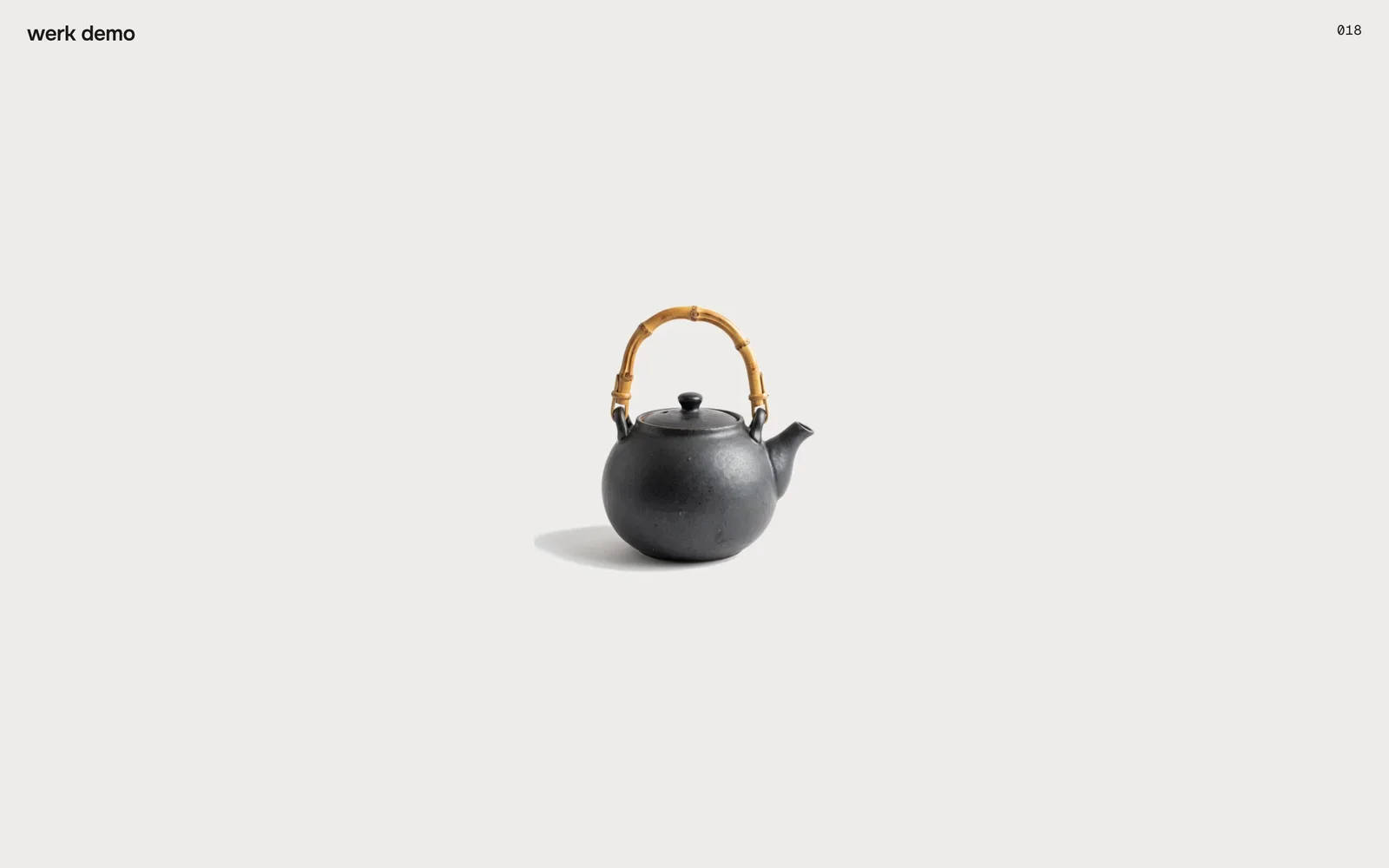
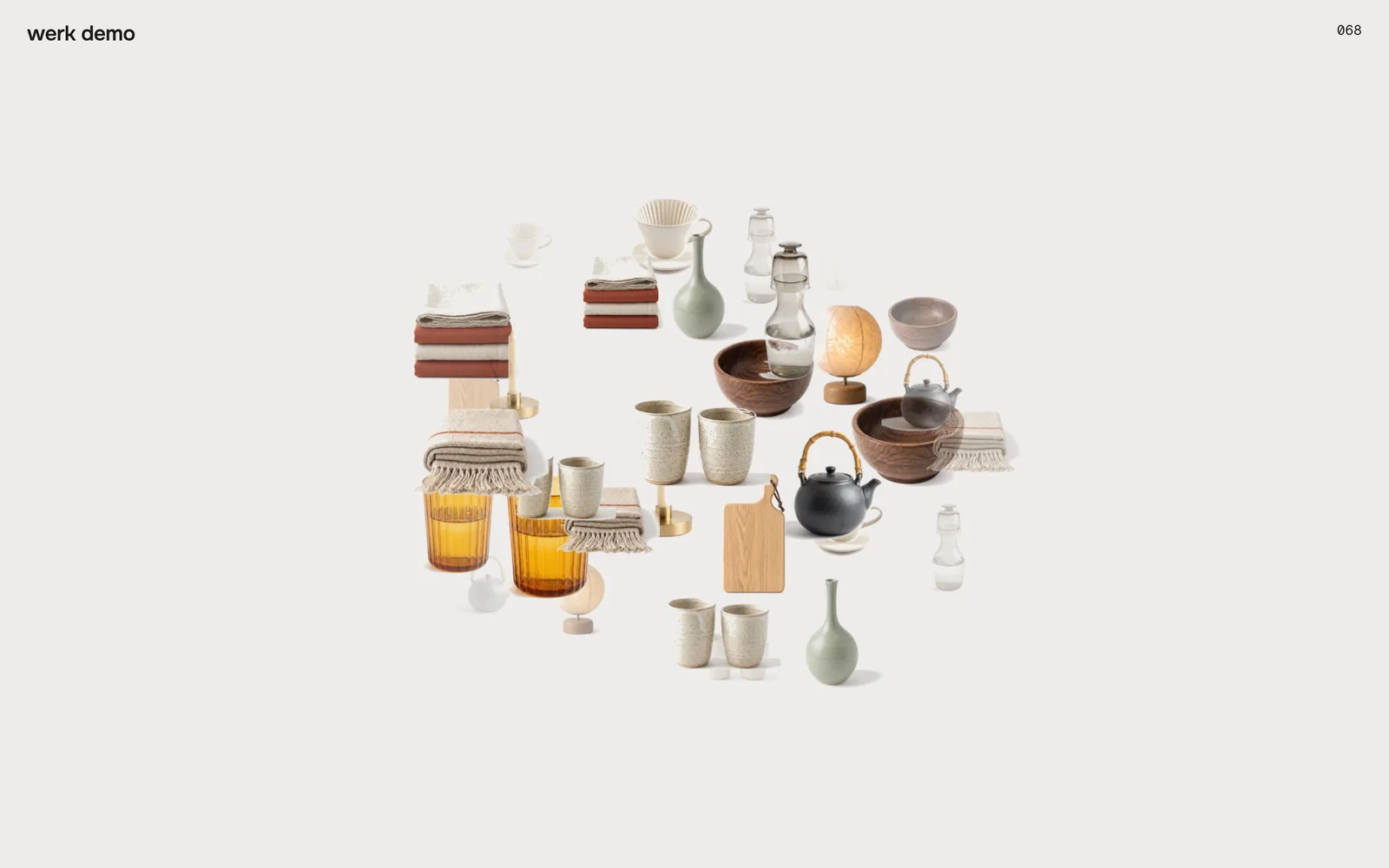
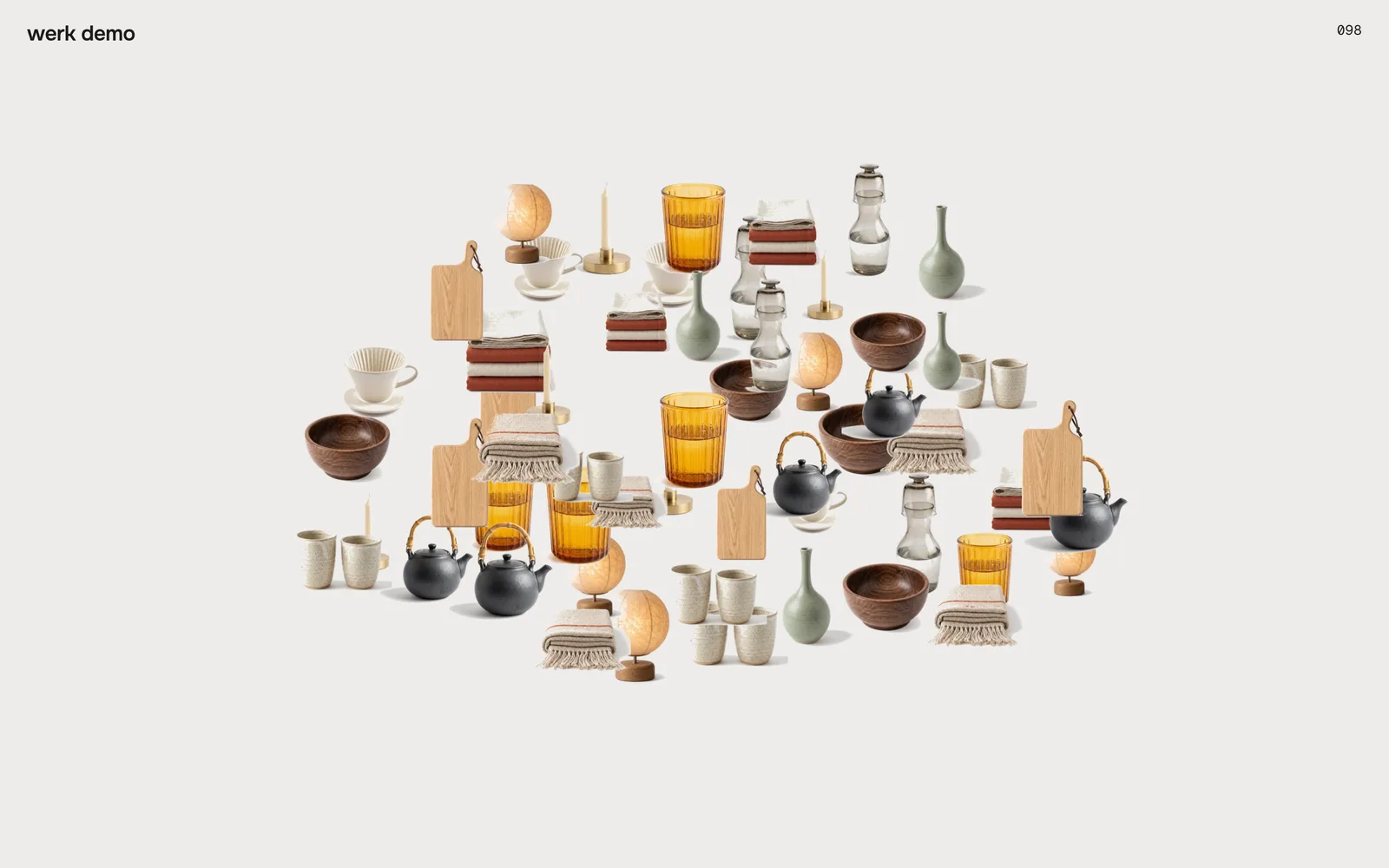
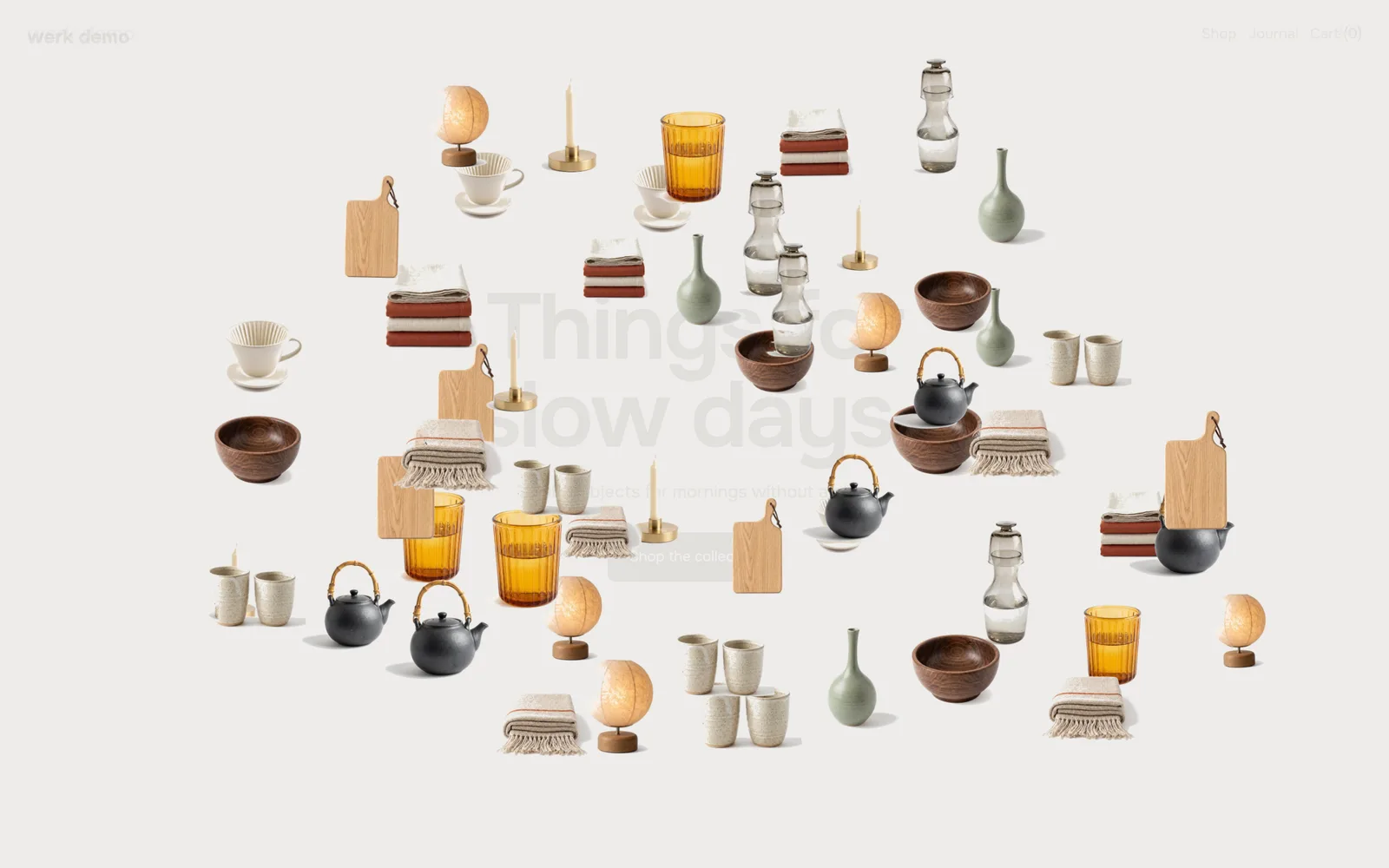
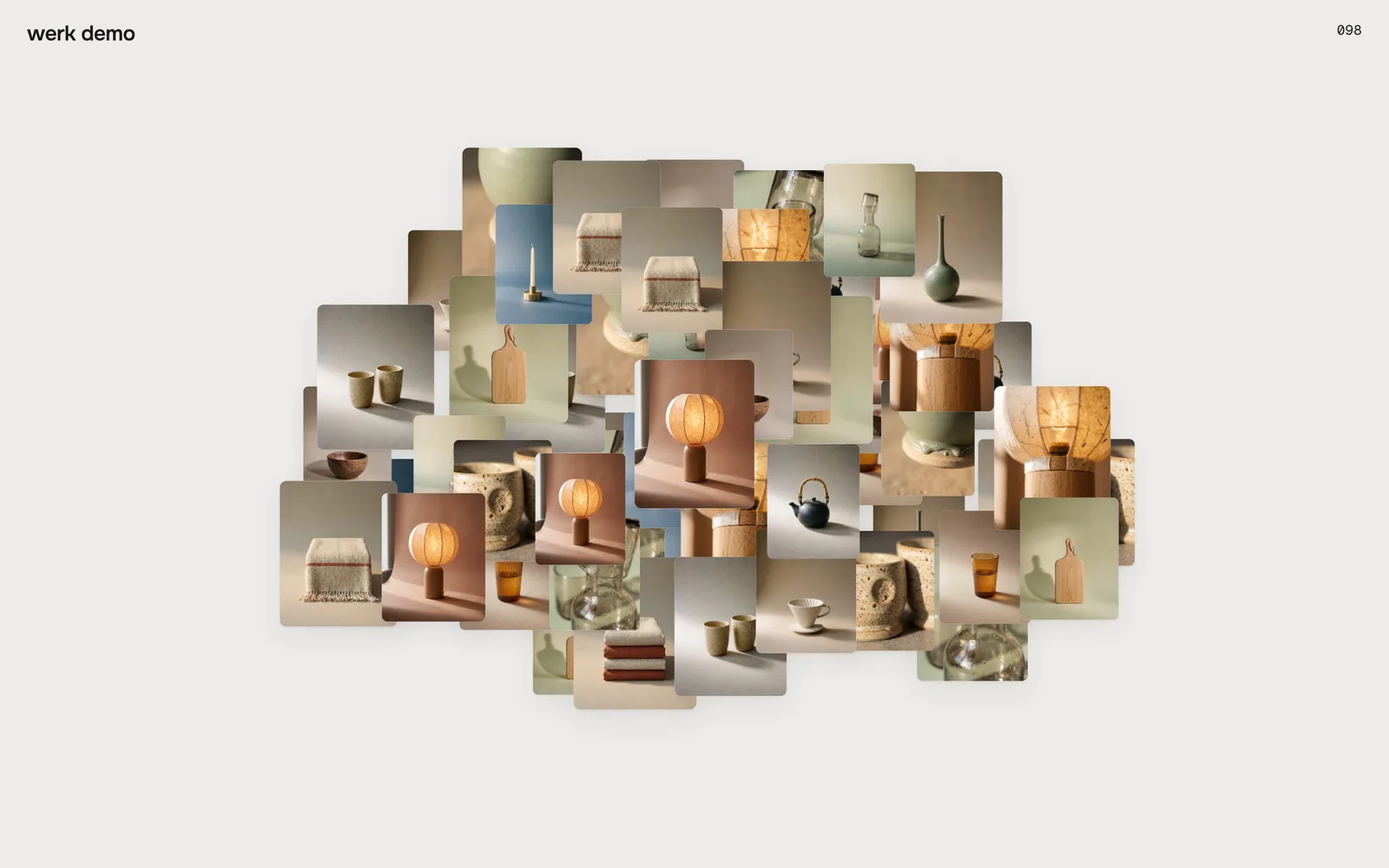
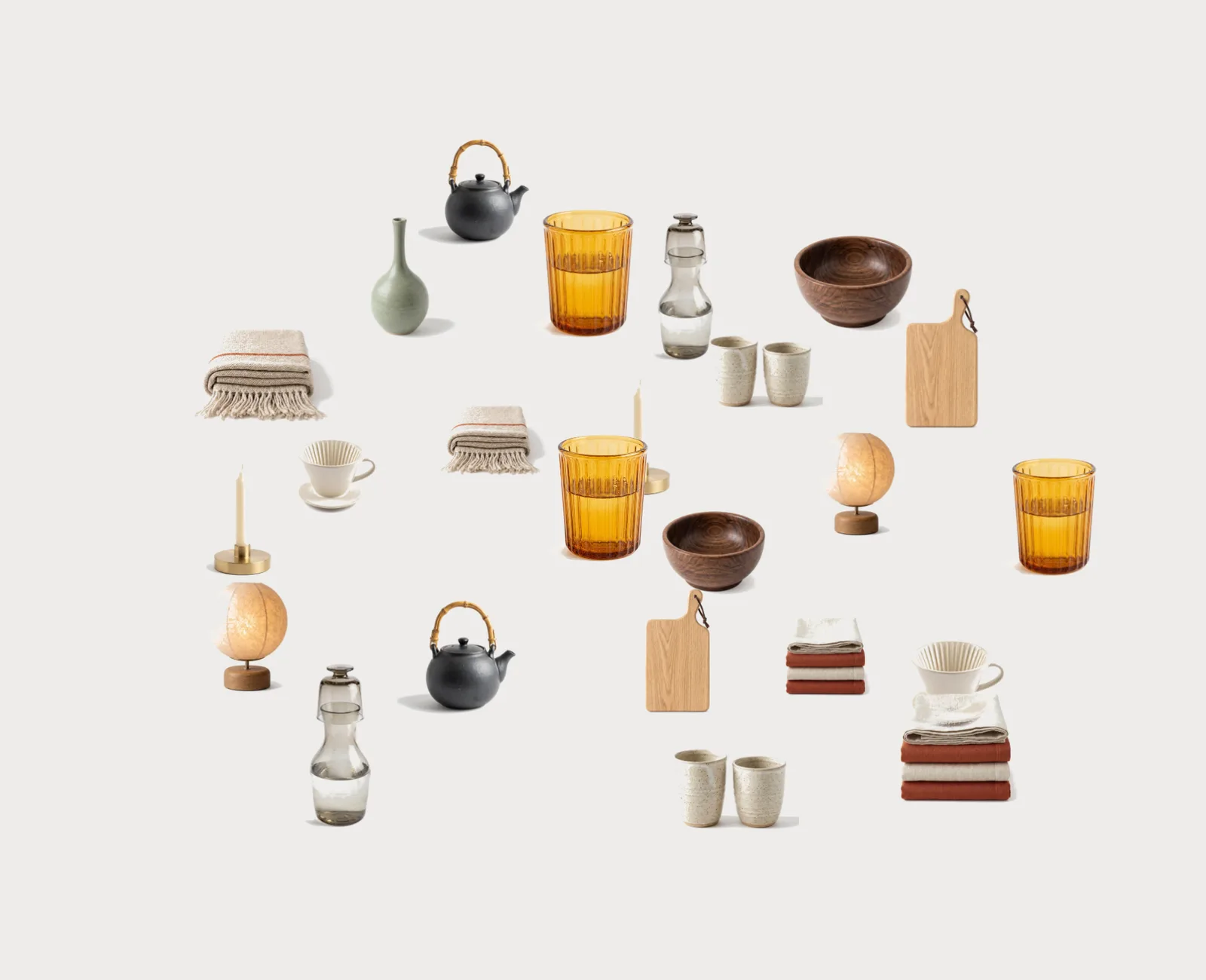
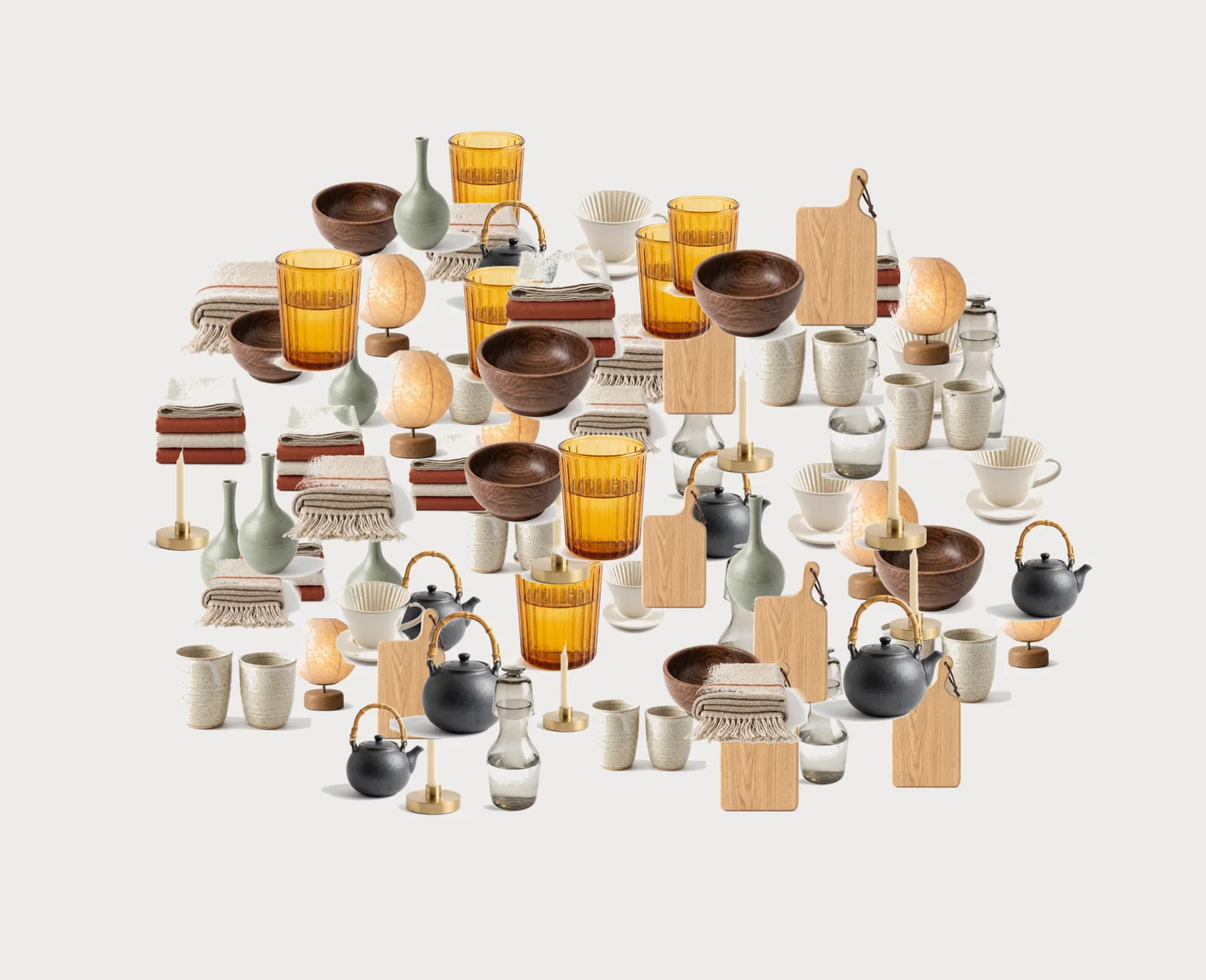
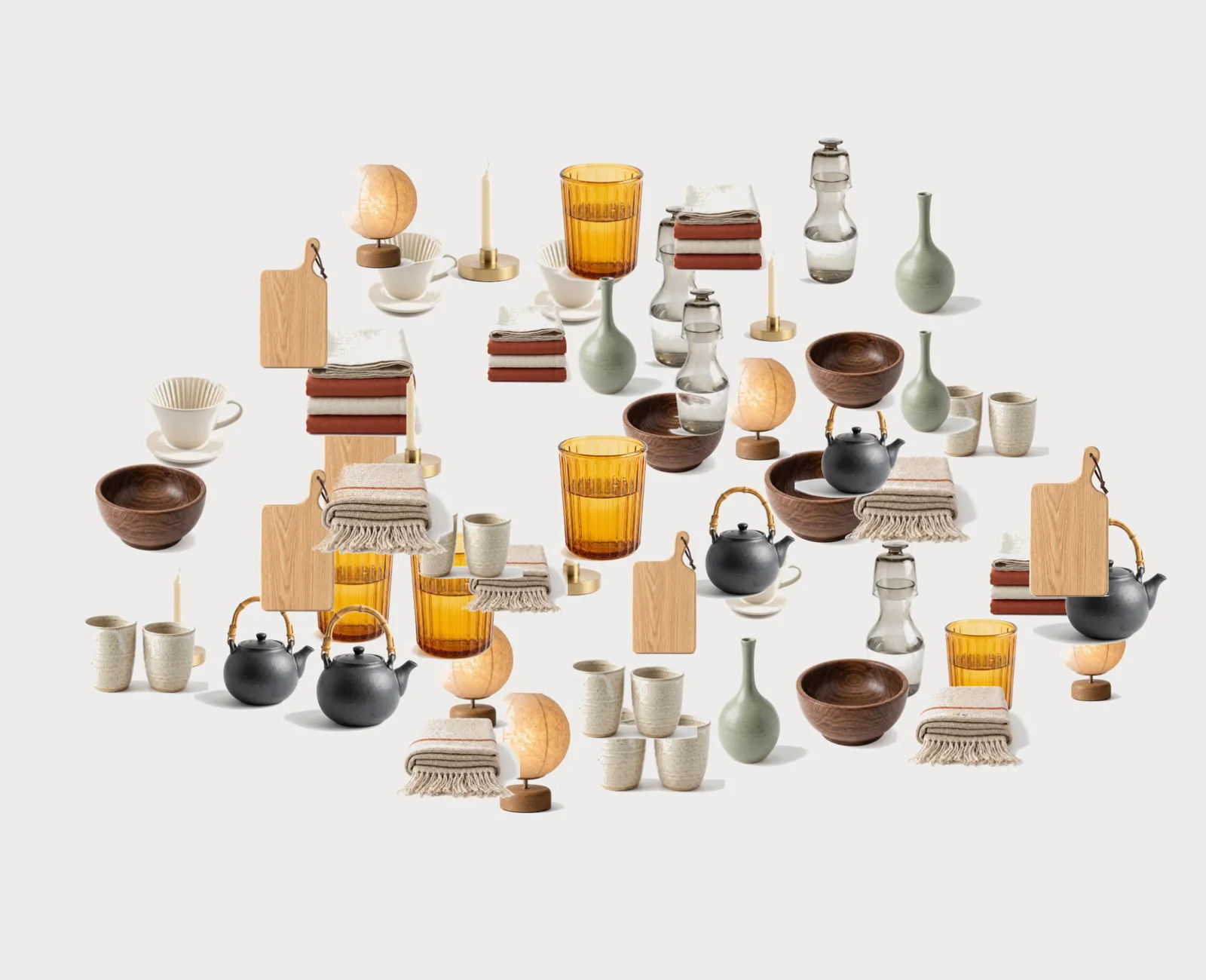
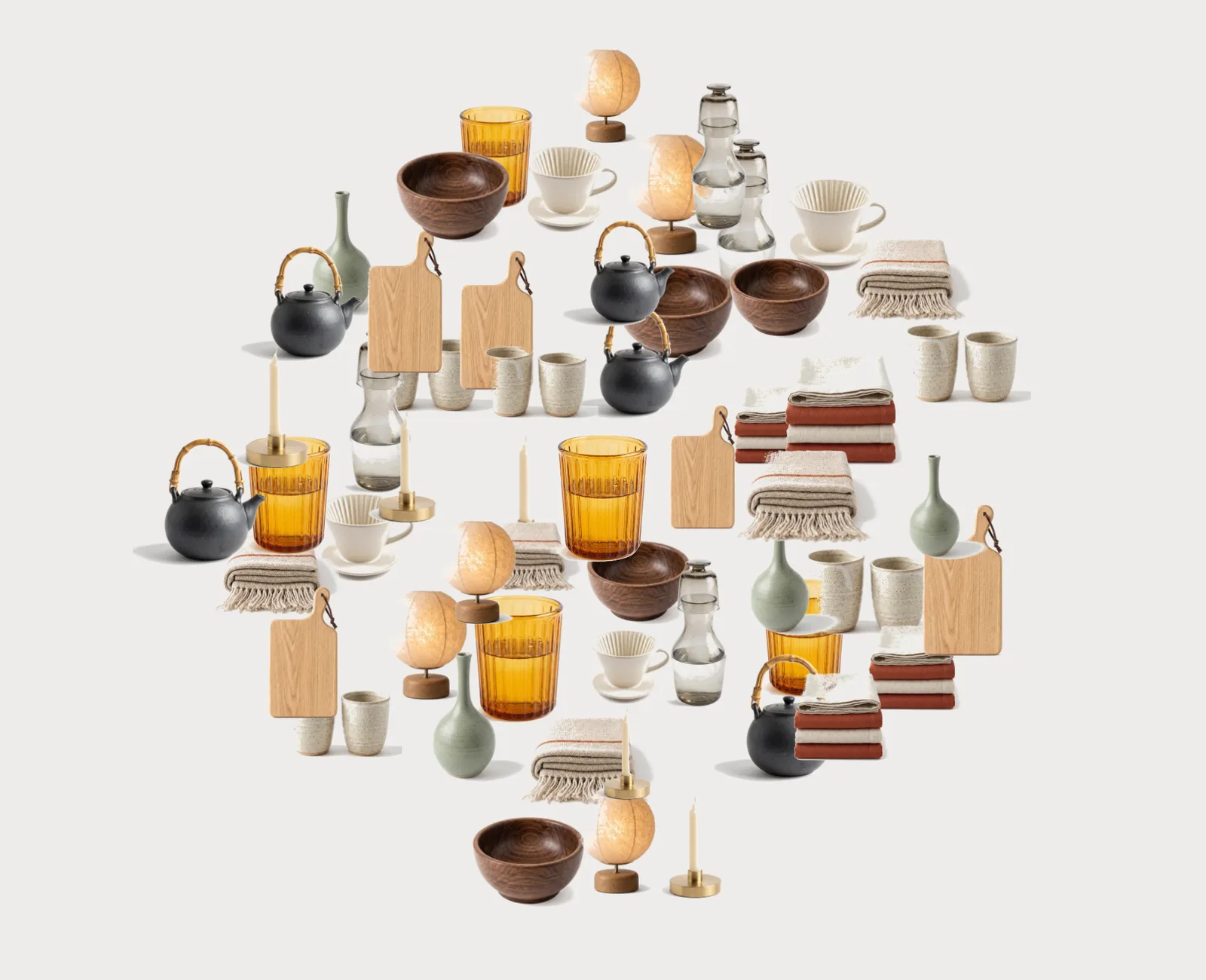
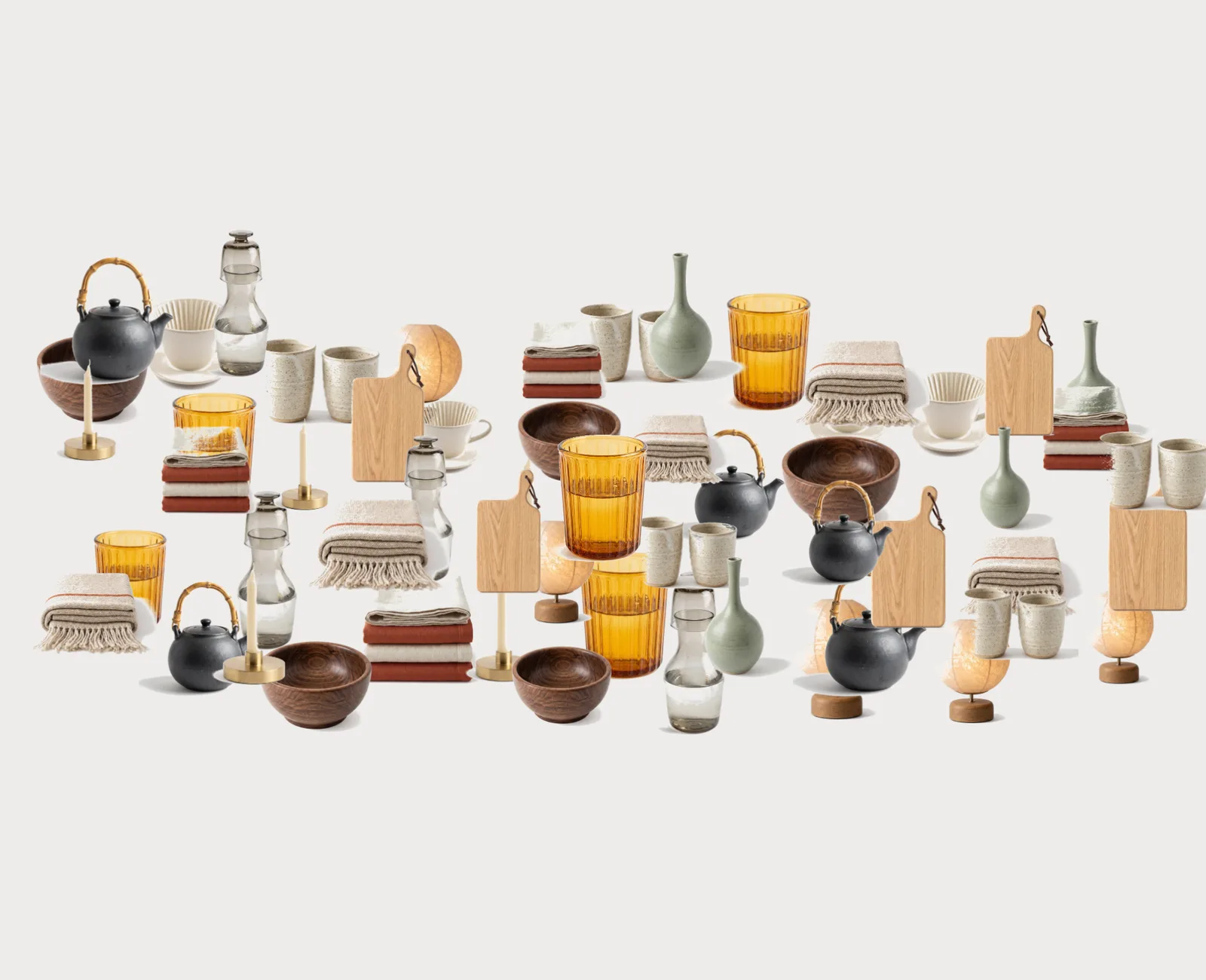
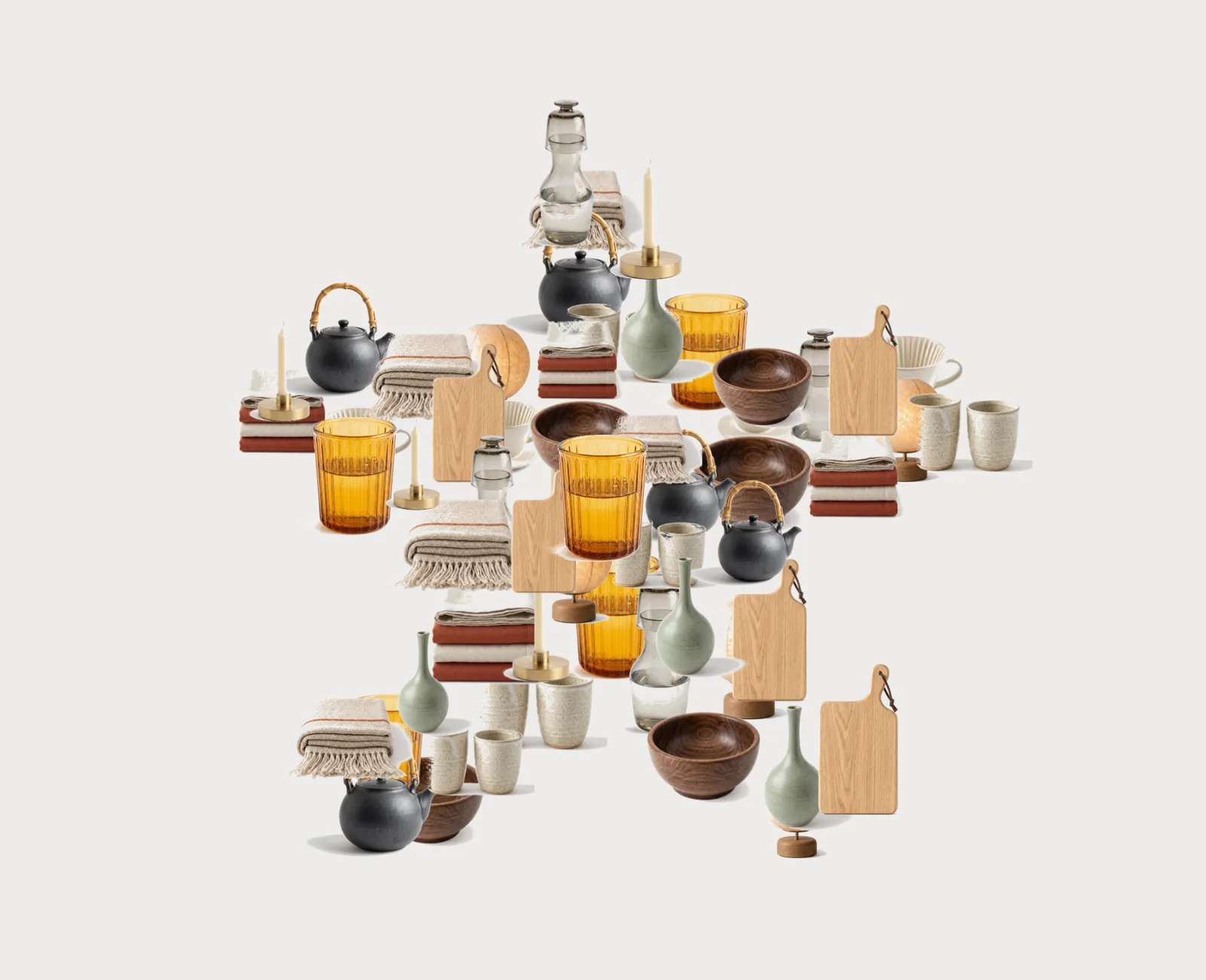
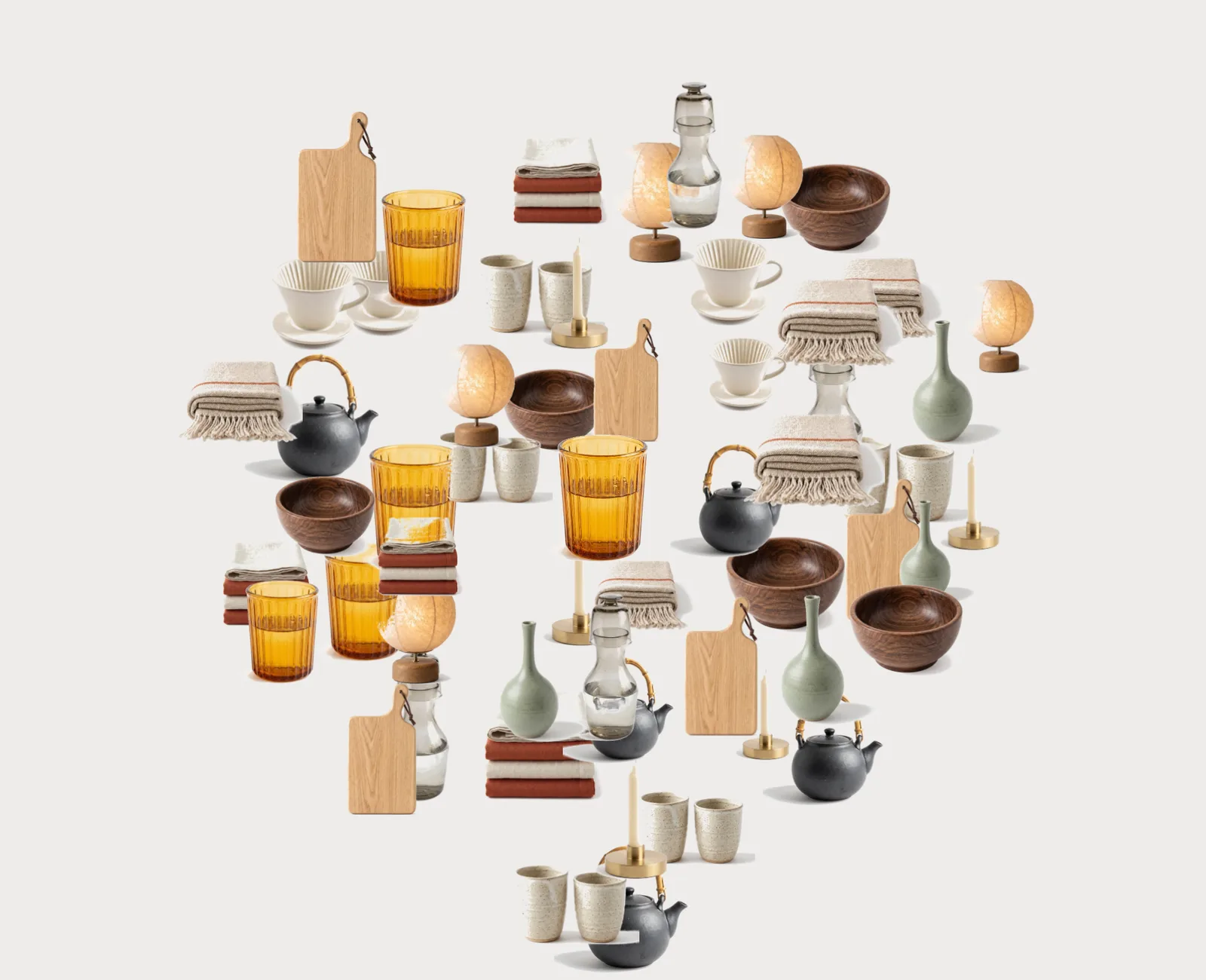
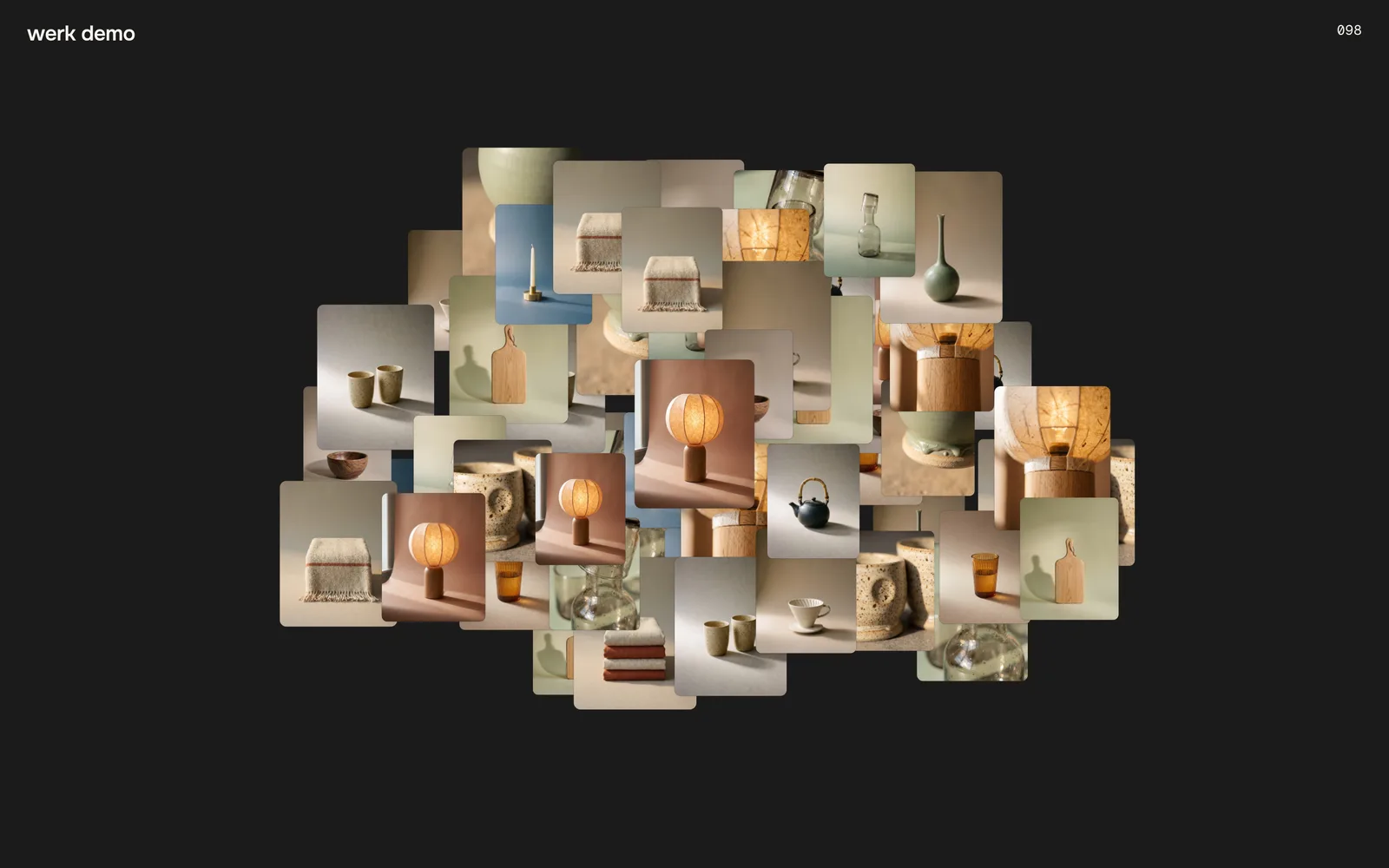
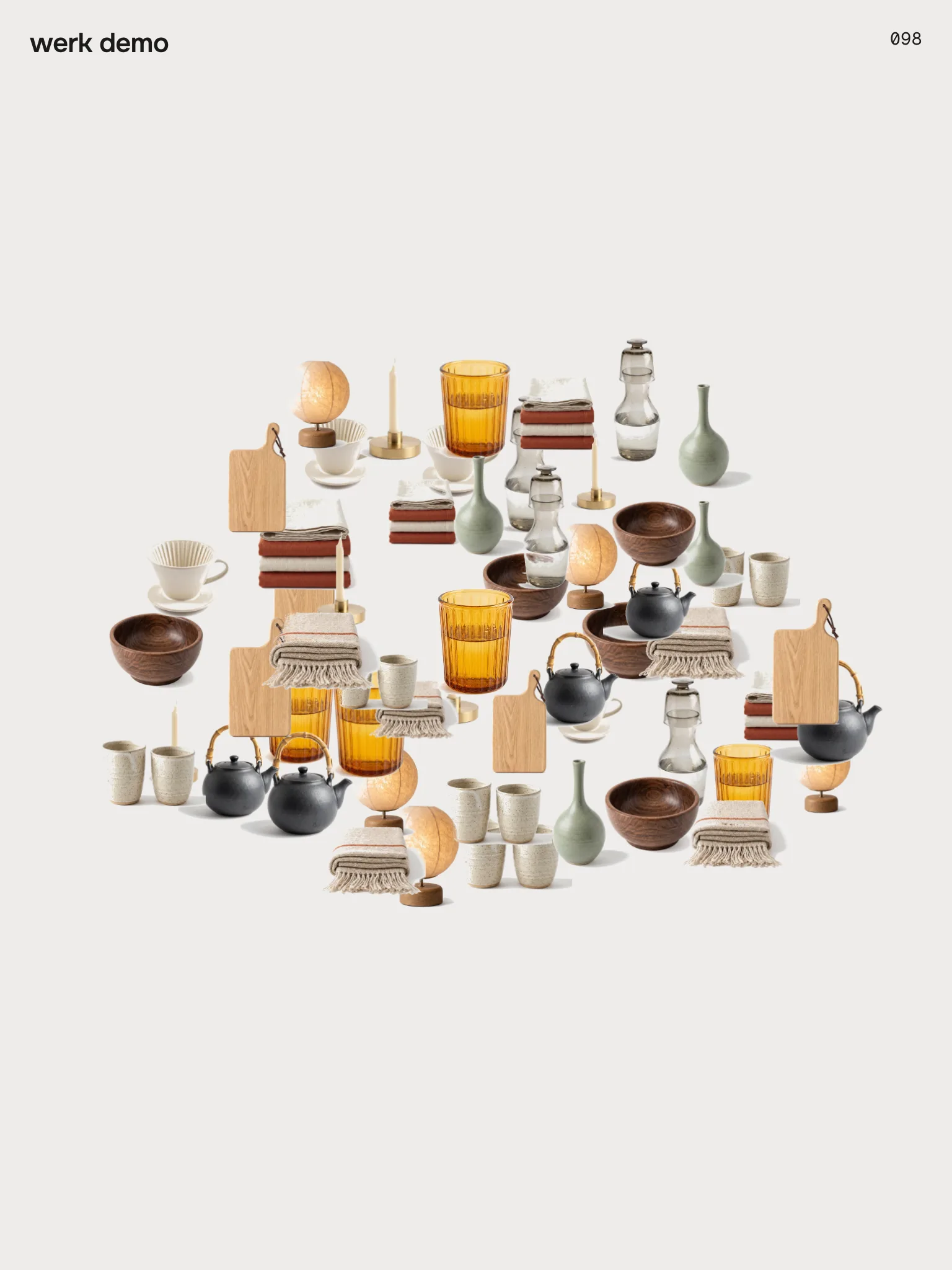
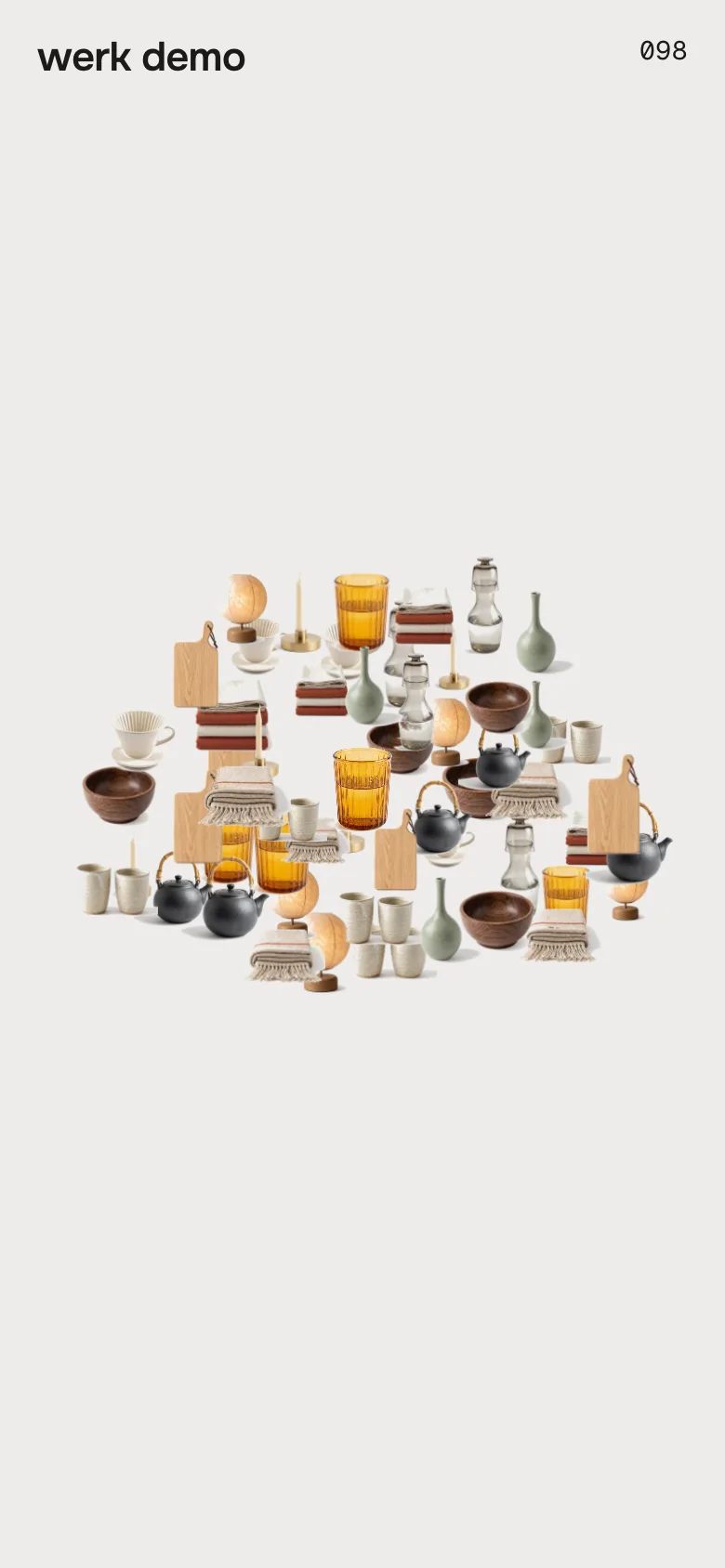
A first impression made of your own products. While the page loads, single products flash by in the middle of the screen, then the camera pulls back and they all sit together in a dense cloud – or a circle, pill, star or heart. A moment later they burst outward and the page is there. It plays once per visit, takes about three seconds and never blocks a visitor who wants in.
In your theme code editor (Online Store → ⋯ → Edit code), click the sections folder, then “New File”, name it and hit Enter.
02
Paste the code
In the file that just opened, paste the code below. Then hit Save (top right corner).
Note: Shopify shows no confirmation when a section saves – that’s normal.
03
Add it in the theme editor
Saved? Then reload the theme editor – otherwise the new section sometimes doesn’t show up. After that: Edit theme → Add section → . Everything else is in the sidebar – the Docs below explain every setting.
Code
One file. Copy it, paste it, done.
sections/werk-burst-loader.liquid
Locked
{%- comment -%} werk · Burst Loader · v1.0.0 · werk.build/license – do not remove {%- endcomment -%}{%- liquid assign s = section.settings # Demo pictures and fonts load from the werk demo store's Files (Shopify CDN), so the section looks the same in any store. # The demo reuses the twelve objects of Product Canvas (“Things for slow days”): -a cut-outs on white, -b / -c on a tone backdrop. assign werk_cdn = 'https://cdn.shopify.com/s/files/1/0954/8303/5932/files/' assign font_url = werk_cdn | append: 'werk-onest.woff2' assign mono_url = werk_cdn | append: 'werk-geist-mono.woff2' if s.font_url != blank assign font_url = s.font_url endif if s.mono_font_url != blank
1112 lines · Liquid, CSS & vanilla JS
Free – just add your email
Every section is free during launch. Enter your email once and copy any code you like.
Edit theme → open the home page (or the Header group to have it on every page) → Add section → . Select it in the editor and it plays once – with our demo objects.
2
Pick your products
Choose a Collection – the main picture of each product flies. Add Picture blocks for your own pictures.
3
Check the pictures
Cut-out needs product photos on pure white. Photos with a backdrop look better with Picture style → Card.
FlashFlash – one product after another in the middle, fast
Pull backPull back – the camera moves out, the others pop in around it
ShapeShape – all pictures together, the one on top changes twice more
BurstBurst – every picture flies off along its own line, the page appears
While the page loads
The intro covers the screen before the first paint, so visitors never see the page build up behind it. It loads every picture first – at most 1.5 seconds, then it starts anyway and late pictures fill in. When it's done it removes itself; the page underneath was there all along.
Cut-out pictures stay solid
In Cut-out, the white around each product is taken away once while it loads – so overlapping pictures cover each other like real objects instead of shining through.
Skip it
A click anywhere or Esc jumps straight to the burst. Turn Click or Esc skips off to always show the whole intro.
Without the intro
Visitors who prefer reduced motion and Animations off: logo and counter for a moment, then a short fade. Without JavaScript the intro never shows.
Collection
Default · Empty
The main picture of each product, in the collection's order – up to 40. Products without a picture are left out. Until you pick a collection or add Picture blocks, the section shows our demo objects.
Picture style
Default · Cut-out
Cut-out removes white backgrounds – it needs product photos on pure white. For photos with a backdrop, pick Card.
Cut-outthe white around each product disappears, the objects float on the background. Needs photos on pure white, like most packshots.
Cardevery picture sits on a small card with rounded corners and a soft shadow. For photos with a backdrop or a scene.
Cut-outCard
Pictures in the shape
Default · 56
How many pictures make up the shape. With fewer pictures than this, they repeat. Stars and hearts read best from 48.
2480
Theme editor
Burst Loader
Picture
Picture
Picture
Your own pictures – lookbook shots, details, anything. They join after the collection's products. Up to 30.
SettingWhat it doesDefault
ImageThe picture. Cut-out needs it on pure white. Empty blocks are left out.Empty
AI labelFor an AI-generated picture: a small (i) in the corner you pick.Off
Shape
Default · Cloud
The shape always fits the screen: about 80 % of its shorter side, wide shapes take more width where there is room.
Cloud
Circle
Pill
Star
Heart
CloudCloud – soft and wide
CircleCircle
PillPill – wide and flat
StarStar – five points
HeartHeart
Show logo
Default · On
Top left. Without a logo picture it shows your shop's name.
Logo
Default · Empty
Your logo as a picture – SVG or PNG with a transparent background look best.
A logo picture instead of the shop name
Logo width
Default · 96px
The width of the logo picture.
Show counter
Default · On
Counts from 000 to 100 in the top right corner while the intro runs.
Plays
Default · Once per visit
Once per visit counts for the whole shop, even if the section sits on several templates. In the theme editor it plays when you select the section.
Once per visitthe first page of a visit, then not again until the browser tab is closed.
On every page loadevery time. Good for a landing page, tiring on a whole shop.
Speed
Default · 100%
100 % takes about 3.3 seconds. 150 % is a quick 2.2, 50 % a slow 6.6.
Click or Esc skips
Default · On
A click anywhere or Esc jumps to the burst.
Animations
Default · On
Off: logo and counter for a moment, then a short fade. Visitors who turned on “reduce motion” on their device always get this.
Fonts
Default · Design fonts
Onest (the shop name) and Geist Mono (the counter) from werk's CDN. Use theme fonts swaps both at once – the shop name takes your heading font. Or swap each one with its own URL: Self-hosted font URL replaces Onest, Label font URL replaces Geist Mono. Empty keeps werk's font.
1Background#EDECE9The whole screen until the burst
2Text#1C1B1AShop name and counter
3Cards#FFFFFFBehind pictures in Card that don't fill it
Use theme colors takes the background and text colour of the page around the section.
A dark background with Card – shop name and counter follow the text colour
Easing
Default · werk Signature
How the camera pulls back from the first picture to the shape.
werk Signature
Smooth
Bounce
Snap
Glide
werk SignatureSlow start, soft landing
SmoothEven and quiet
BounceA little past the shape and back
SnapQuick start, gentle stop
GlideSlow in, slow out
Desktop
Tablet
Phone
DesktopTabletPhone
Shape80 % of the screen height80 % of the width80 % of the width
Picture in the flash46 % of the screen height46 %46 %
Logo & counter28 px from the edge24 px20 px
The editor stays free
In the theme editor it never plays on its own. Select the section and it plays once; change a setting and it plays again.
Above everything
The intro sits in the browser's top layer – no header, cart drawer or popup of your theme can cover it, and it can't push anything around.
Light on the page
One loop that ends after three seconds, then the intro is gone from the page. No libraries. The pictures are drawn on canvases, so they never count as your page's largest picture.
AI label
Using an AI-generated picture? Switch on AI label in its Picture block and pick a corner. The text and the look are set once, under AI label. Product pictures from the collection never get one.
Horizon4.2TestedPlays over the header, theme fonts and colours, editor
Dawn16TestedPlays over the header, theme fonts and colours, editor
I don't see the intro on my shop.
It plays once per visit – you have seen it already in this tab. Open the shop in a new private window, or set Plays to On every page load while you check.
The section shows demo objects.
No collection is picked and no Picture block has a picture yet.
My products have white boxes around them / look cut off.
Cut-out takes away white – pictures with a grey or coloured backdrop keep it, and very light products can lose a little of their edge. Use Picture style → Card for those photos.
The same pictures appear several times.
There are fewer pictures than Pictures in the shape. Add products to the collection, add Picture blocks or lower the number.
It plays in the editor every time I change something.
That's on purpose, so you see each change. Visitors see it once per visit.
Visitors only get a short fade.
Their device asks for reduced motion, or Animations is off.
1.0.012 Oct 2026
NewFirst stable release. While the page loads, products flash by, the camera pulls back to a shape of them – cloud, circle, pill, star or heart – and they burst away to reveal the page.
NewPictures from a collection (main picture of each product) and picture blocks; Cut-out keys out the white so overlapping pictures stay solid, Card for photos with a backdrop.
NewLogo or shop name and a counter, once per visit or on every load, speed, click or Esc skips, easing, theme fonts and colours, AI label per picture block.
NewSits in the browser's top layer (stays above theme popovers such as a nav dock), never shows without JavaScript, a short fade for reduced motion.
NewTested: stress test (57 runs), Horizon + Dawn in the store, theme fonts and colours measured.
* Built for Online Store 2.0 and tested in Shopify's Horizon and Dawn themes. Heavily customised or older themes can still clash with it – if something looks off, write us and we'll take a look.