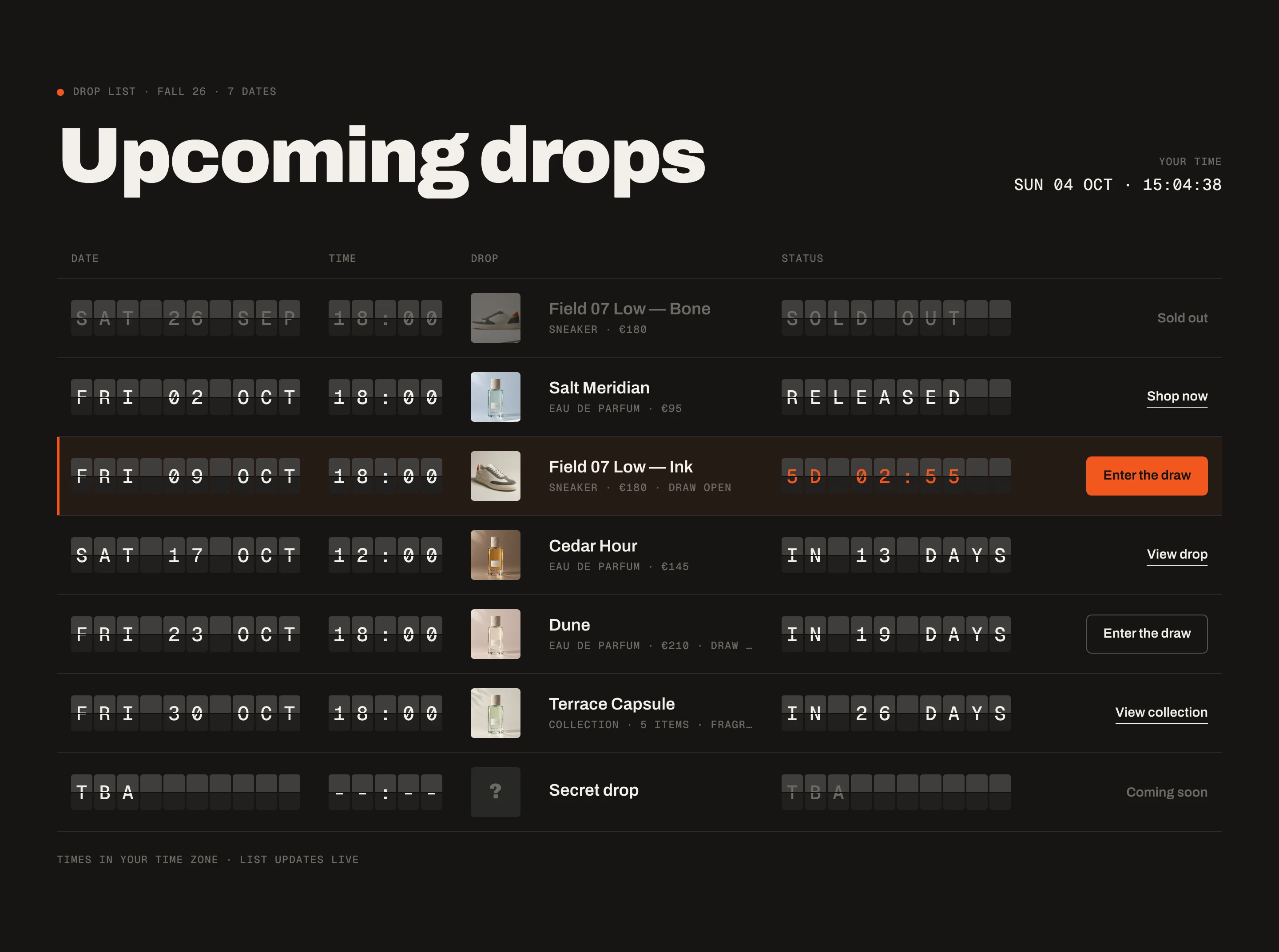
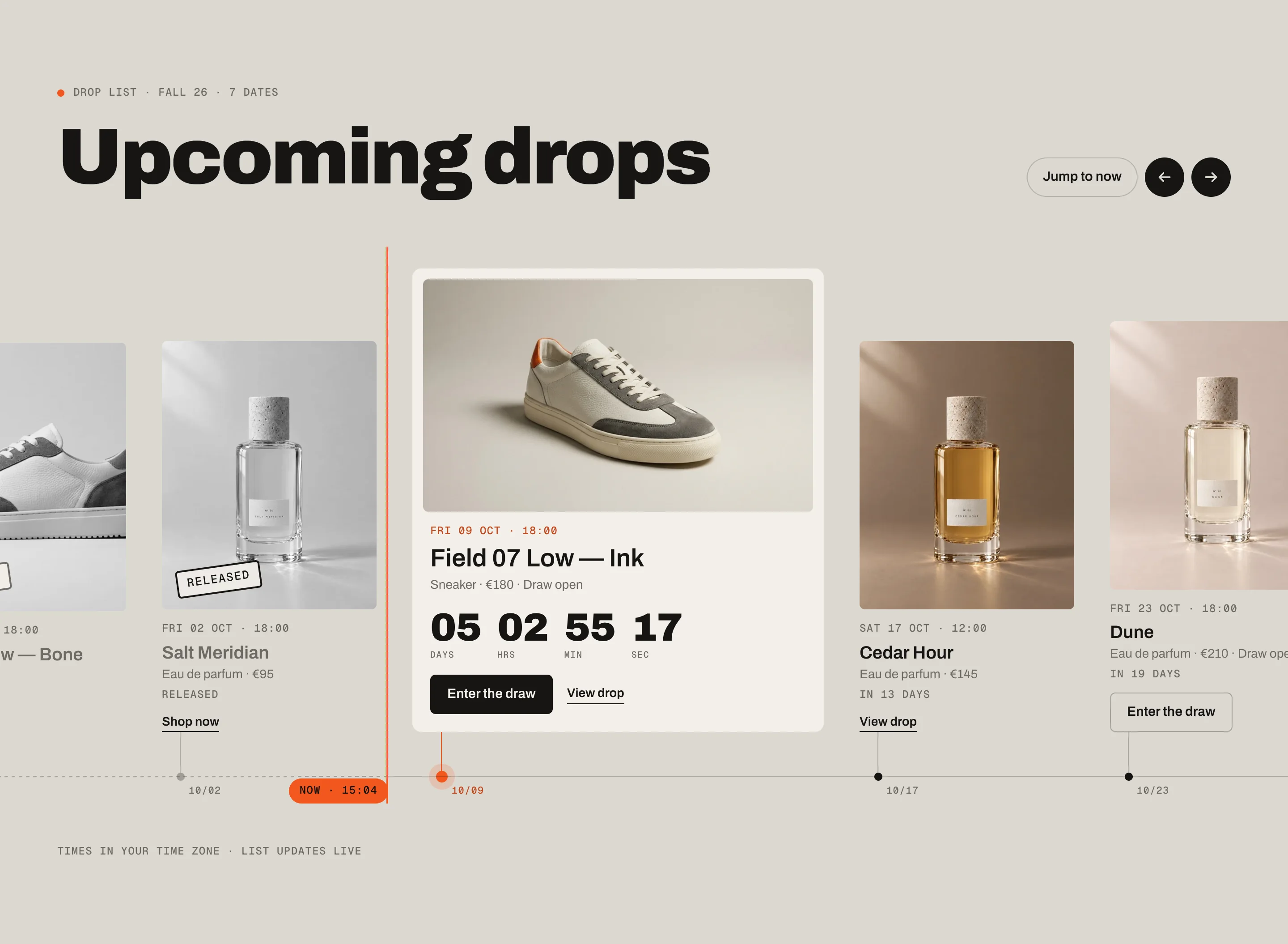
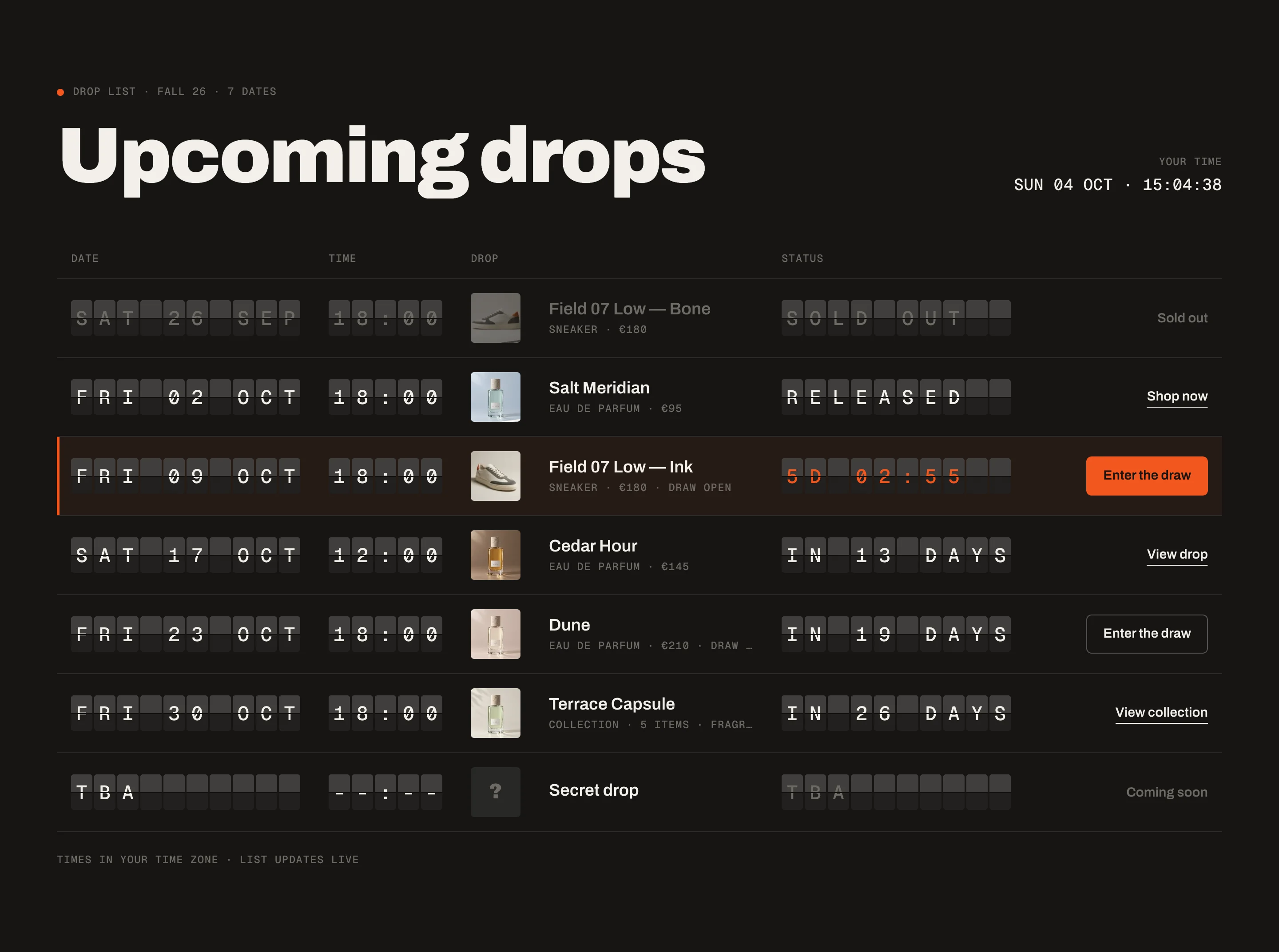
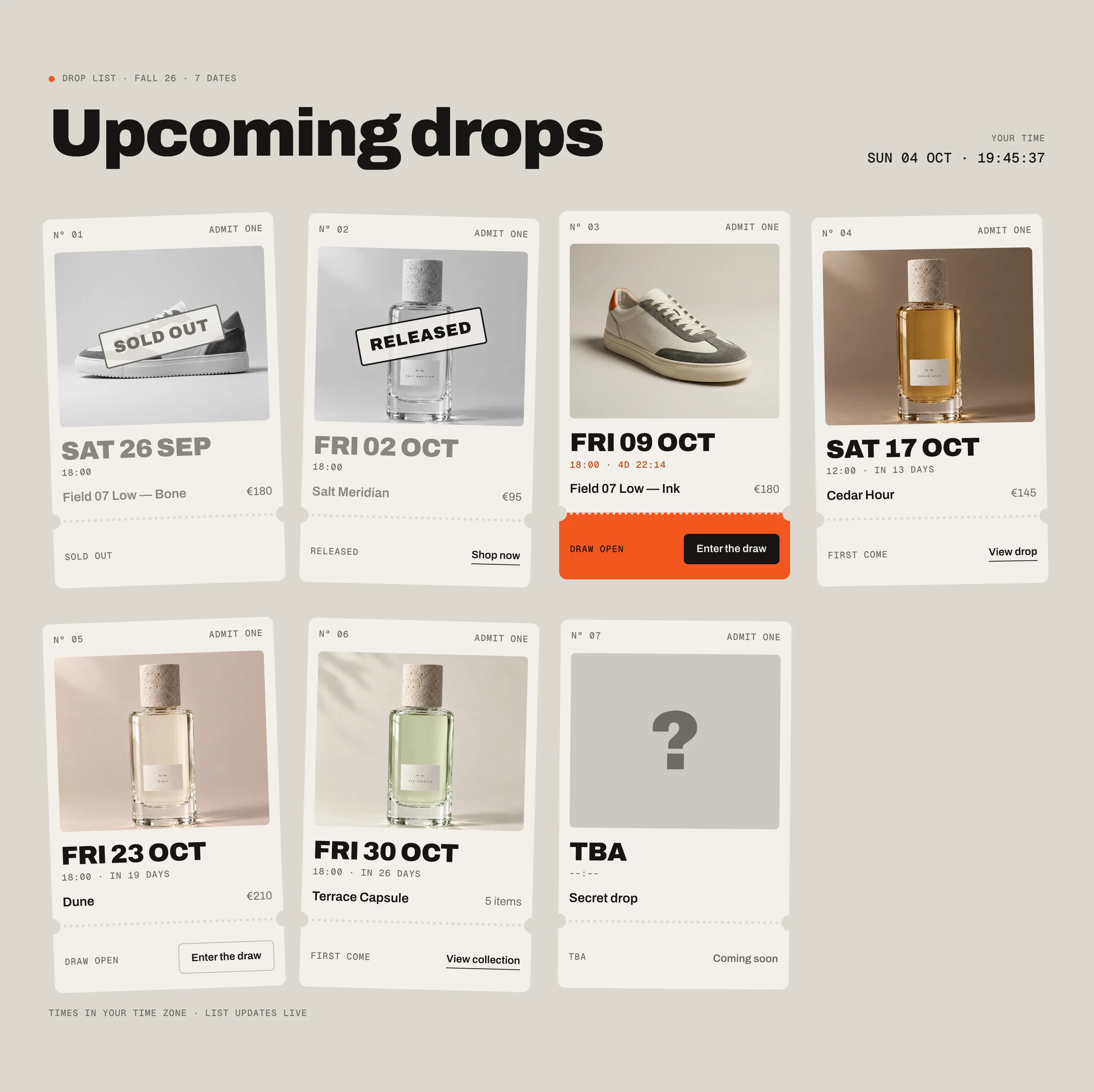
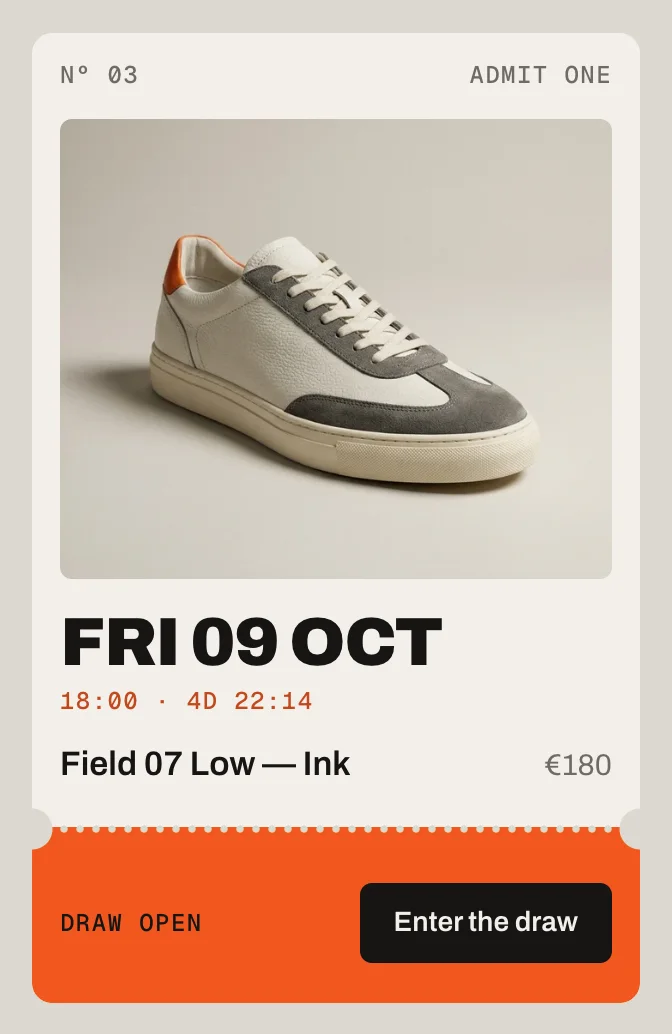
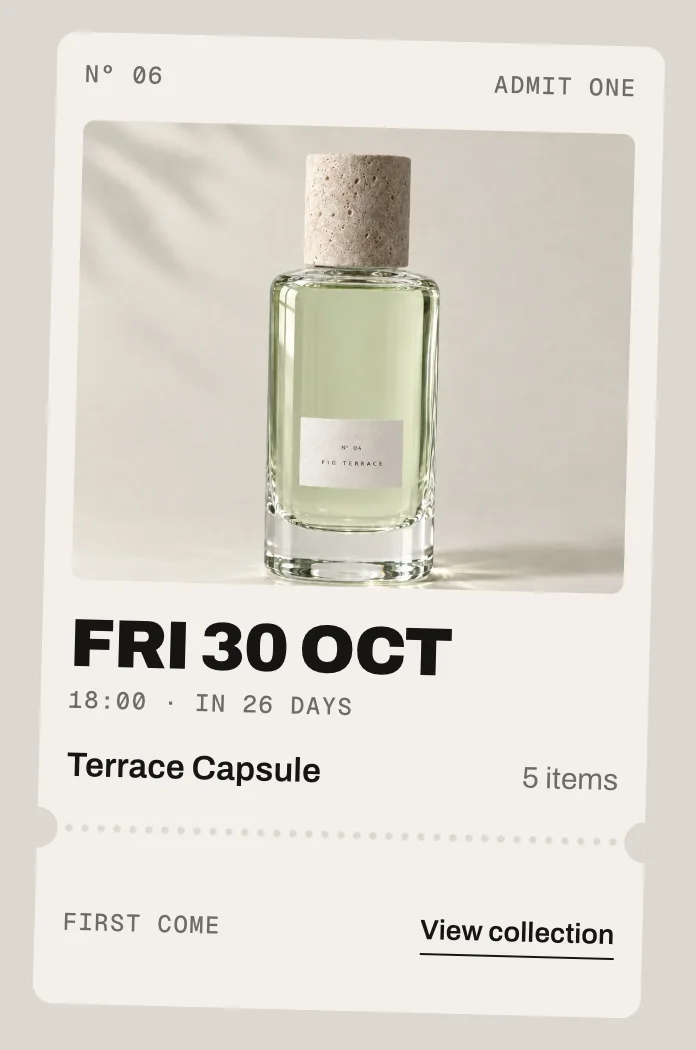
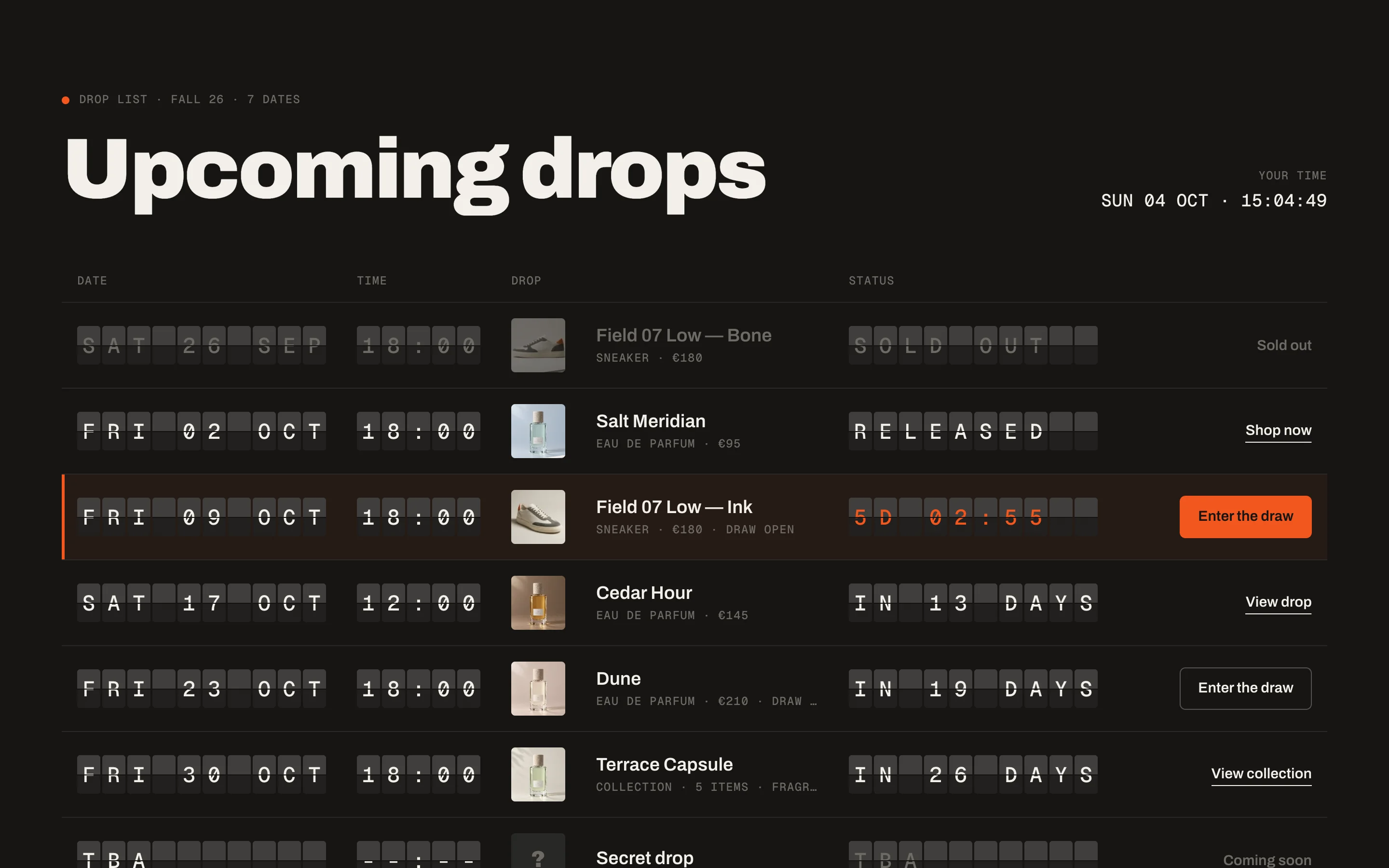
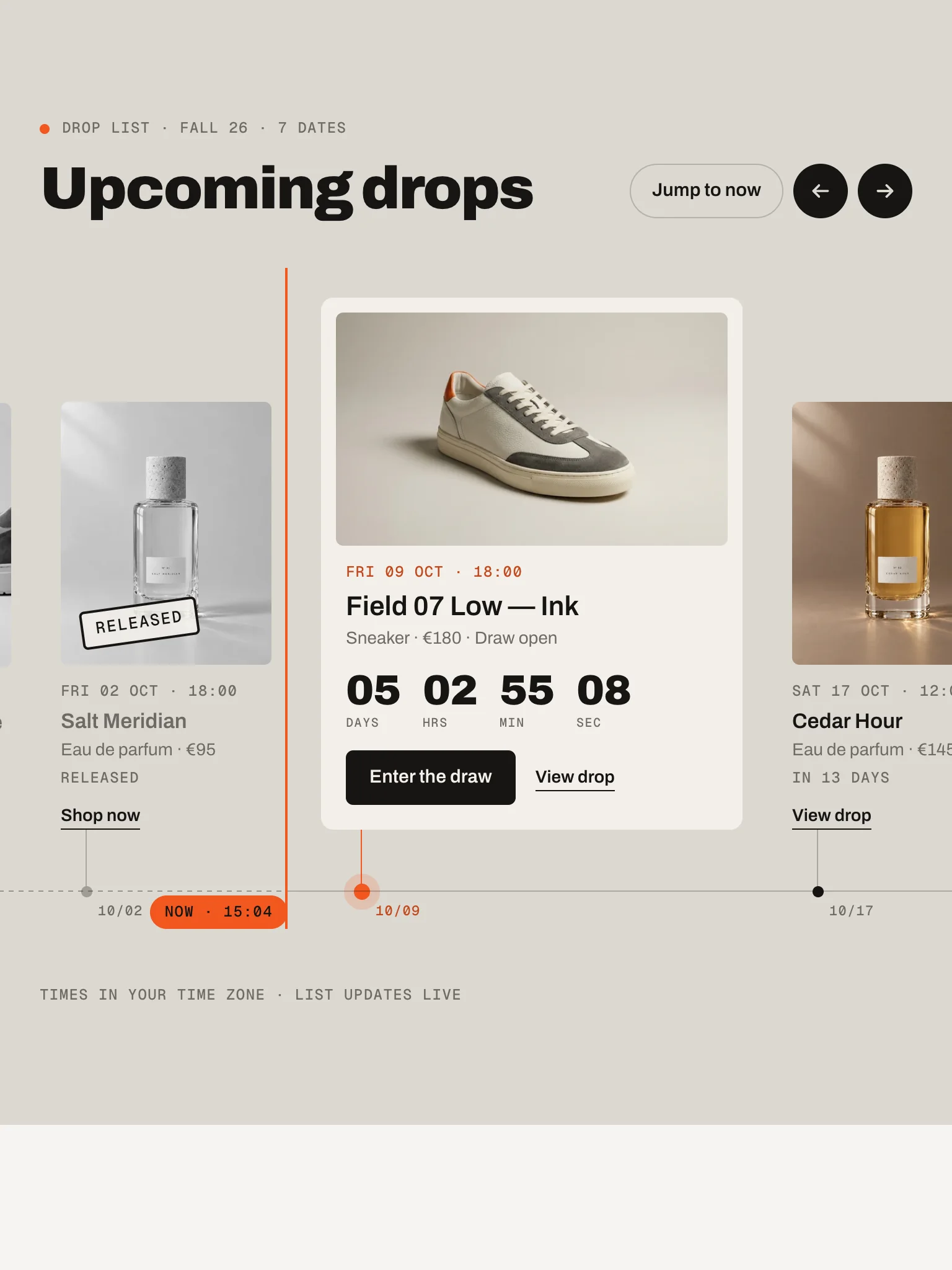
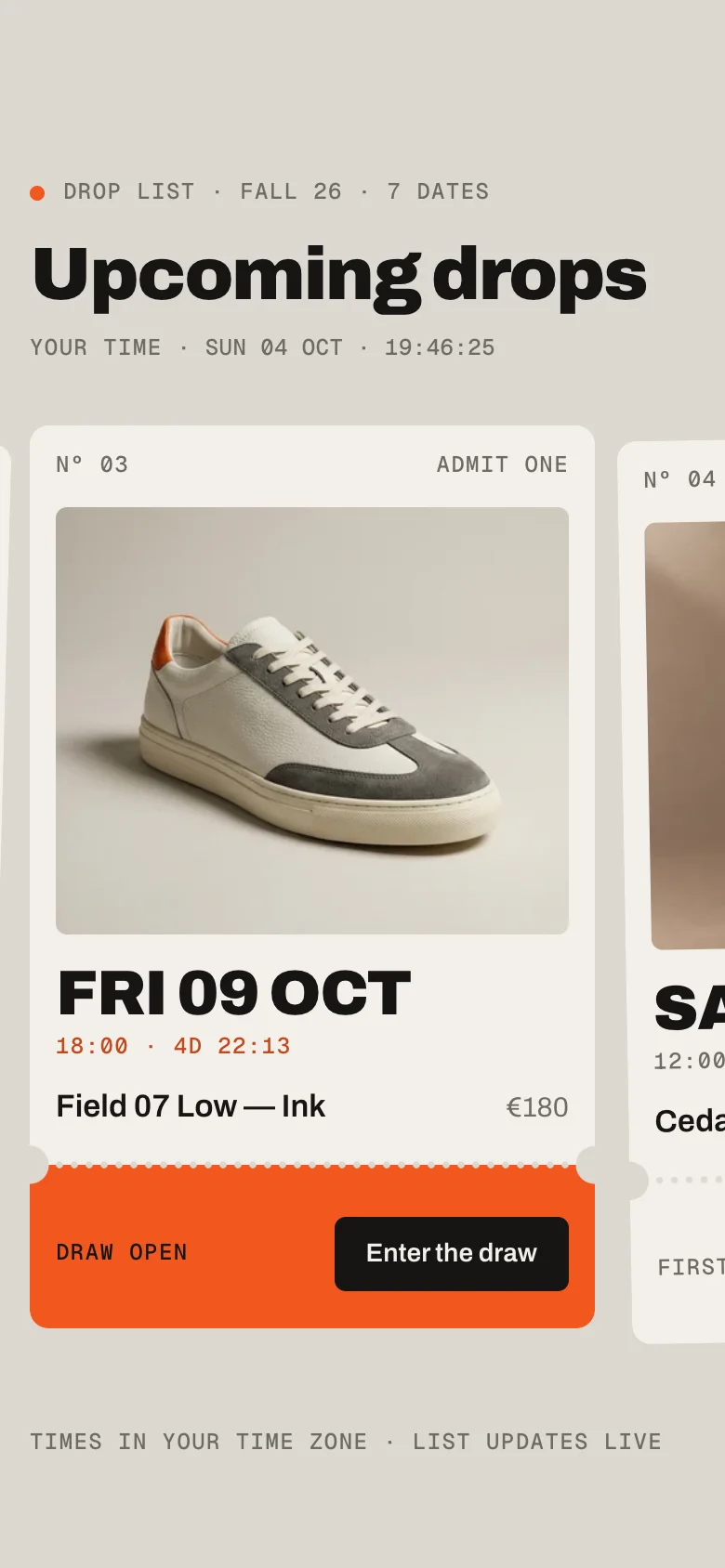
Every date as a split-flap departure board (Board), a timeline with a live now line (Rail) or a row of perforated tickets (Tickets). Past dates turn Live and Released on their own, sold-out products get stamped, and any date can open a draw that drops the entry into your customer list.
In your theme code editor (Online Store → ⋯ → Edit code), click the sections folder, then “New File”, name it and hit Enter.
02
Paste the code
In the file that just opened, paste the code below. Then hit Save (top right corner).
Note: Shopify shows no confirmation when a section saves – that’s normal.
03
Add it in the theme editor
Saved? Then reload the theme editor – otherwise the new section sometimes doesn’t show up. After that: Edit theme → Add section → . Everything else is in the sidebar – the Docs below explain every setting.
Code
One file. Copy it, paste it, done.
sections/werk-drop-list.liquid
Locked
{%- comment -%} werk · Drop List · v1.5.0 · werk.build/license – do not remove {%- endcomment -%}{%- liquid assign s = section.settings # Demo images and fonts load from the werk demo store's Files (Shopify CDN), so the section looks the same in any store. assign werk_cdn = 'https://cdn.shopify.com/s/files/1/0954/8303/5932/files/' assign display_url = werk_cdn | append: 'werk-archivo.woff2' assign mono_url = werk_cdn | append: 'werk-geist-mono.woff2' if s.font_url != blank assign display_url = s.font_url endif if s.mono_font_url != blank assign mono_url = s.mono_font_url
2653 lines · Liquid, CSS & vanilla JS
Free – just add your email
Every section is free during launch. Enter your email once and copy any code you like.
Edit theme → open the page → Add section → – Board, – Rail or – Tickets. It starts with seven demo drops.
2
Add a Drop block per date
Date and time, e.g. 2026-10-17 18:00 – in your store’s time zone. Then a Product, a Collection, or just a Title for a secret drop – or leave everything empty for a mystery drop.
3
Turn on a draw
Tick Draw on the dates that are raffled instead of first come, first served. Pick where entries go in Draw → Send entries to.
4
Write the heading
Eyebrow and Heading, and save. The dates switch to Live now and Released by themselves.
BoardBoard – a split-flap departure board
RailRail – a timeline with a live now line
TicketsTickets – perforated tickets with a stub
Look
Default · Board
Board is dark by design – the colors below come with each look's preset.
BoardOne row per date. Date, time and status sit on flaps that rattle in when the board scrolls into view and flip whenever a status changes. Dark by design: its preset brings the dark colours.
RailThe dates on a horizontal line. An orange line marks now and moves on its own; the next drop gets a big card with its own countdown. Visitors drag, swipe or use the arrows; Jump to now brings them back.
TicketsEvery date is a ticket. Past drops get a Released or Sold out stamp, the next drop’s stub turns orange. On phones the tickets become a swipe row that starts at the next drop.
UpcomingUpcoming: In 13 days
The next dropThe next drop: a countdown in the accent colour
LiveAt the drop: Live now
Released and sold outAfterwards: Released or Sold out
WhenStatusAction
More than two days to goIn 13 daysView drop / View collection
Less than two days to goIn 20 hView drop
The next drop4D 03:27 – under a day with secondsEnter the draw or View drop
From the drop timeLive nowShop now
After Show “Live now” forReleasedShop now
The product has nothing leftSold out–
No dateTBA (or your own word)Coming soon
Past drops to keep
Default · 2
How many past drops stay in the list, newest first. 0: only what’s still to come.
Show “Live now” for
Default · 24h
How long a drop says Live now before it says Released.
Highlight the next drop
Default · On
Off: the next drop looks like every other one – no accent, no big card, no orange stub.
Seconds in the last 24 hours
Default · On
From 24 hours before a drop the countdown ticks in seconds. Off: hours and minutes only.
Drop
A product, a collection, or neither.
SettingWhat it doesDefault
Date and timeIn your store’s time zone, as YYYY-MM-DD HH:MM. Empty: TBA.Empty
Instead of the dateOnly without a date, e.g. Nov or Spring 27.Empty
ProductTitle, image, price, sizes and sold out come from the product.Empty
Or collectionTitle, image and the number of products come from the collection.Empty
TitleReplaces the product’s or collection’s title. Without product and collection it makes the date a teaser. Empty as well: a mystery drop.Empty
CategoryA word next to the price, e.g. Sneaker or Outerwear.Empty
ImageReplaces the product’s or collection’s image.Empty
Show the number of itemsCollections: 5 items.On
Mark as sold outFor collections and teasers – products switch by themselves.Off
DrawEnter the draw instead of first come, first served. See Draw.Off
Draw endsOptional, YYYY-MM-DD HH:MM. After it: Draw closed until the drop.Empty
LinkReplaces the link to the product or collection.Empty
ProductCollection
Secret drops
A block with only a Title (and maybe an Image) is a teaser: no link, no price. Without an image it shows a question mark. Without a date it says TBA and Coming soon – add the date later and it joins the countdown like every other drop.
Leave the title empty too and it's a mystery drop: just the question mark and the date – or TBA, or your Date label (e.g. Spring). A brand-new block is exactly that, so nothing has to be typed and deleted again.
Show prices
Default · On
Products only. Off: no prices anywhere in the list.
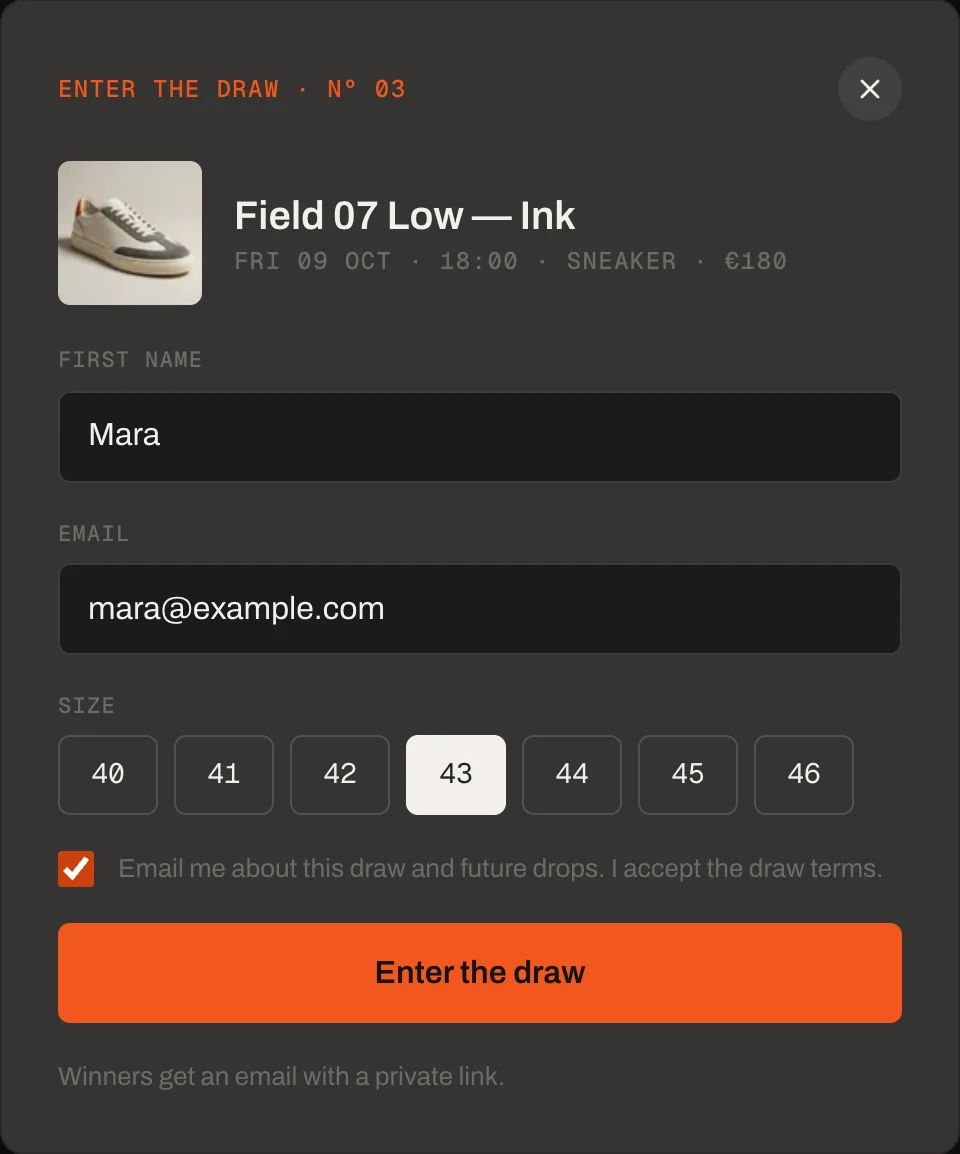
Enter the draw: first name, email, size and the consent box
Send entries to
Default · Customer list (tags)
Customer list: each entry becomes a customer with the tags werk-draw, draw-<product> and draw-<product>-<size>, and signs up for email marketing. Contact email: Shopify emails you every entry.
Customer list (tags)Every entry becomes a customer in Shopify with the tags werk-draw, draw-<product> and draw-<product>-<size>. In Customers, filter by the tag to see everyone in the draw. Entrants sign up for your email marketing, so say so in Consent.
Contact emailShopify emails you every entry (drop, date, name, email, size). Nobody is signed up for anything.
Ask for the first name
Default · On
A first-name field above the email. Off: the draw only asks for the email (and the size, if set).
Ask for a size
Default · On
The values of the product’s size option (Size, Größe, Taille …), so Color × Size asks the size. A product with a single option asks that one (e.g. Volume). Products without options, several options but none named like a size, collections and teasers never ask.
Consent
Default · Email me about this draw and future dr…
Visitors have to tick it. Add a link to your draw terms here.
Note under the button
Default · Winners get an email with a private li…
A small grey line under the button, e.g. how winners hear from you. Leave it empty to hide it.
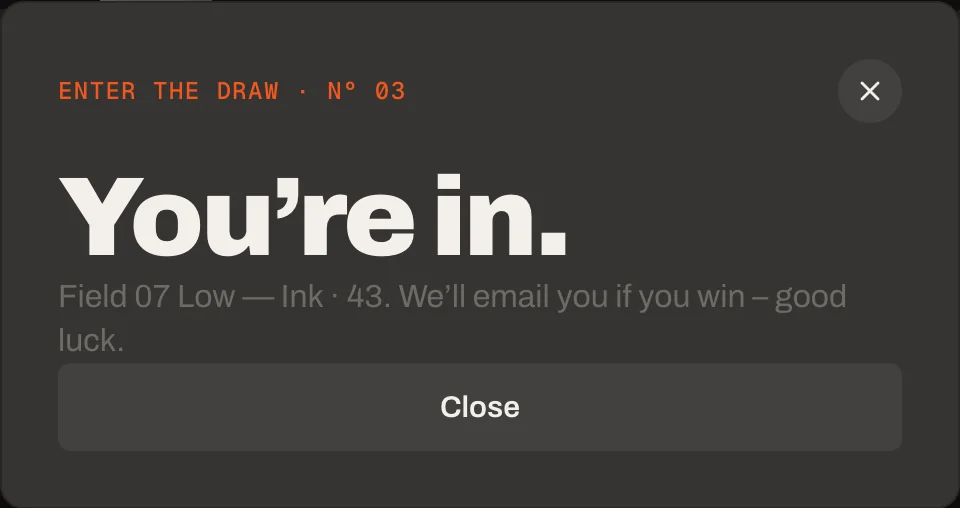
After entering
Shopify reloads the page (that’s how it checks for bots). The dialog opens again and says You’re in, and the date shows You’re in from then on – on that device.
The dialog after entering
Eyebrow
Default · Drop list · Fall 26 · [count] dates
[count] is the number of dates. Empty: no eyebrow.
Heading
Default · Upcoming drops
The big heading above the list. Leave it empty to hide it.
Show the visitor's time
Default · On
The visitor’s date and time, live. Rail shows the time on its now line instead.
Only visible in the Board and Tickets looks
[count]The number of datesDrop list · [count] dates→Drop list · 7 dates
[n]Days, hours or itemsIn [n] days→In 13 days
[drop]The drop and the chosen size[drop]. We’ll email you→Field 07 Low — Ink · 43. We’ll email you
[date]The drop’s date and timeDraw closes [date]→
Some texts belong to one look and only show in the theme editor while that look is set.
Board: column titlesDate, Time, Drop, StatusThe four column heads of the Board – split them by a vertical bar Only in Board
Tickets: cornerAdmit oneTop right on every ticket Only in Tickets
Rail: daysDaysUnder the countdown on the big card Only in Rail
Rail: hoursHrsUnder the countdown Only in Rail
Rail: minutesMinUnder the countdown Only in Rail
Rail: secondsSecUnder the countdown Only in Rail
Rail: nowNowThe orange marker on the line Only in Rail
Rail: jump to nowJump to nowThe button that brings the line back to today Only in Rail
Rail: earlier (screen readers)Earlier dropsThe left arrow, for screen readers Only in Rail
Rail: later (screen readers)Later dropsThe right arrow, for screen readers Only in Rail
Fonts
Default · Design fonts
Archivo and Geist Mono from werk’s CDN – or Use theme fonts. Self-hosted font URL replaces Archivo with your own file. Use theme fonts swaps every font at once. Or swap each one with its own URL – Self-hosted font URL replaces Archivo; Label font URL replaces Geist Mono (the small labels and numbers). Empty keeps werk’s font.
Colors
Default · Design colors
Background, text, muted text, cards / tickets / flaps, lines and the accent (next drop, live, draw) – or Use theme colors, which takes the colours of the page around the section. Board’s preset starts dark, Rail and Tickets light. Button and Button text give the buttons their own colours – empty keeps the design.
Buttons
Default · Clean
Use theme buttons gives Enter the draw your theme’s style. Button style sets how buttons and links react on hover.
Hover them – click a button for loading → added
View dropCleanGrows a touch, the underline runs out and backView dropDot to arrowThe dot grows into an arrowView dropRolling textThe label rolls up, a copy followsView dropFillColour wipes in from the leftView dropShineA band of light passes over
Animations & easing
Default · On · werk Signature
The flaps rattle, stamps land, the now line glides. Visitors who turned on “reduce motion” on their device see the texts change without movement.
werk SignatureSlow start, soft landing
SmoothEven and quiet
BounceA small overshoot
SnapQuick start, gentle stop
GlideSlow in, slow out
Padding top
Default · 96px
The space above the section. Padding bottom works the same below it.
Side padding
Default · Match theme
Match theme (the default) lines the section up with your theme's page margin – in Horizon the same edge as header and footer. Themes without one, like Dawn, keep the werk edge. werk default always uses the werk edge, Custom takes your own values in px (desktop and tablets / phones), None runs the content to the edge.
Desktop · Board
Tablet · Rail
Phone · Tickets
DesktopTabletPhone
BoardOne row per dateFlaps above, drop belowFlaps, drop, status in three lines
RailDrag, arrows, Jump to nowThe same, smaller cardsSwipe, Jump to now
TicketsFour in a rowTwo in a rowSwipe row, starts at the next drop
DrawDialog in the middleDialog in the middleSheet from the bottom
One clock for everyone
The status follows Shopify’s server time, not the visitor’s device – a wrong clock can’t make a drop look live.
Always in order
Drag the blocks however you like – the list sorts itself by date.
Nothing to update
A drop turns Live now and Released on its own; old ones leave the list after Past drops to keep.
In the theme editor
Click a Drop block and the list scrolls to it – even a past one that’s hidden.
A small badge in the corner
The draw form is a Shopify form, so Shopify’s bot protection (hCaptcha) may show its badge at the bottom right of the page. That’s Shopify, not the section. If Shopify asks a visitor to solve a challenge, the dialog steps aside for it and comes back, still filled in, if the challenge is closed.
AI label
Using an AI-generated picture? Switch on AI label under that picture and pick a corner. The text and the look – pill, info dot or upright along the edge – are set once for the whole section, under AI label. Only for own drop images – product and collection pictures never get one. On Board the thumbnails are small, so the label is just the (i).
Horizon4.2TestedDraw with customer list and contact email
Dawn16TestedDraw with customer list and contact email
The times are off by some hours.
Dates are read in your store’s time zone. Check Settings → General → Time zone, or enter the time in that zone.
A date says TBA although I entered one.
It isn’t in the format YYYY-MM-DD HH:MM, e.g. 2026-10-17 18:00.
A drop says Sold out.
The product has no variant in stock any more (or Mark as sold out is on). Restocked products switch back on the next page load.
Draw entries don’t show up in Customers.
Check that Send entries to is Customer list and filter Customers by the tag draw-<product handle>. Entries of people who are already customers can land differently – if you need every single entry, use Contact email.
The size question doesn’t show.
Ask for a size is off, the product has no options (or only one value), or it has several options and none is named like a size (Size, Größe, Taille, Talla, Maat).
1.5.012 Oct 2026
NewSide padding. Match theme (the default) lines the section up with your theme's page margin – in Horizon the same edge as header and footer. Themes without one, like Dawn, keep the werk edge. werk default always uses the werk edge, Custom takes your own values in px (desktop and tablets / phones), None runs the content to the edge.
1.4.011 Oct 2026
NewAI label per picture (EU AI Act). Under every own picture and video a switch with the corner; the text and the look – pill, info dot that opens on hover, or upright along the edge – are set once under AI label. Off by default, nothing changes until you switch it on. Product and collection pictures from Shopify never get one.
1.3.011 Oct 2026
NewAn empty Drop block is now a mystery drop (question mark, date or TBA) instead of a demo drop – a new block no longer has to be filled and emptied again to stay blank. Demo drops only show while the section has no blocks.
1.2.06 Oct 2026
NewLabel font URL (Fonts) – swap Geist Mono, the small labels and numbers, for your own .woff2. With Self-hosted font URL every font can now be swapped on its own; Use theme fonts still swaps all of them.
1.1.06 Oct 2026
NewButton and Button text colours (Colors). Empty = as designed – nothing changes until you pick one. Hidden while Use theme colors or Use theme buttons is on.
1.0.46 Oct 2026
NewTheme editor: fields follow the look – Rail texts only in Rail, the column titles only in Board, the ticket corner only in Tickets, Show the visitor's time only in Board and Tickets. Nothing you entered is lost when you switch.
* Built for Online Store 2.0 and tested in Shopify's Horizon and Dawn themes. Heavily customised or older themes can still clash with it – if something looks off, write us and we'll take a look.