Mega menu for Shopify
Looking for a Buddha Mega Menu or Globo alternative?
A mega menu for Shopify, without the app.
Big dropdown panels with columns, links and promo pictures – built in the theme editor, block by block. Search and cart are included. One section in your header, free.
- No app
- No monthly fee
- One section, ~2 min
Why a section
Same result for your shoppers. No app behind it.
Built where you already work
Menu apps come with their own editor. Here the menu is blocks in the theme editor – the order you drag them in is the order in the menu.
Your whole header in one
A menu app adds its menu into your theme’s header. Magnetic Mega Nav replaces the header: logo, menu, search, account, country and cart sit in one floating bar.
Visitors can move it
Visitors can drag the menu bar to any edge of the screen. At the sides and on phones, the menu opens one level at a time.
Side by side
What you get – and what you don’t.
General comparison with mega menu apps on the Shopify App Store, as of October 2026. Features differ from app to app – check the one you use.
What you get
Every panel, block by block.
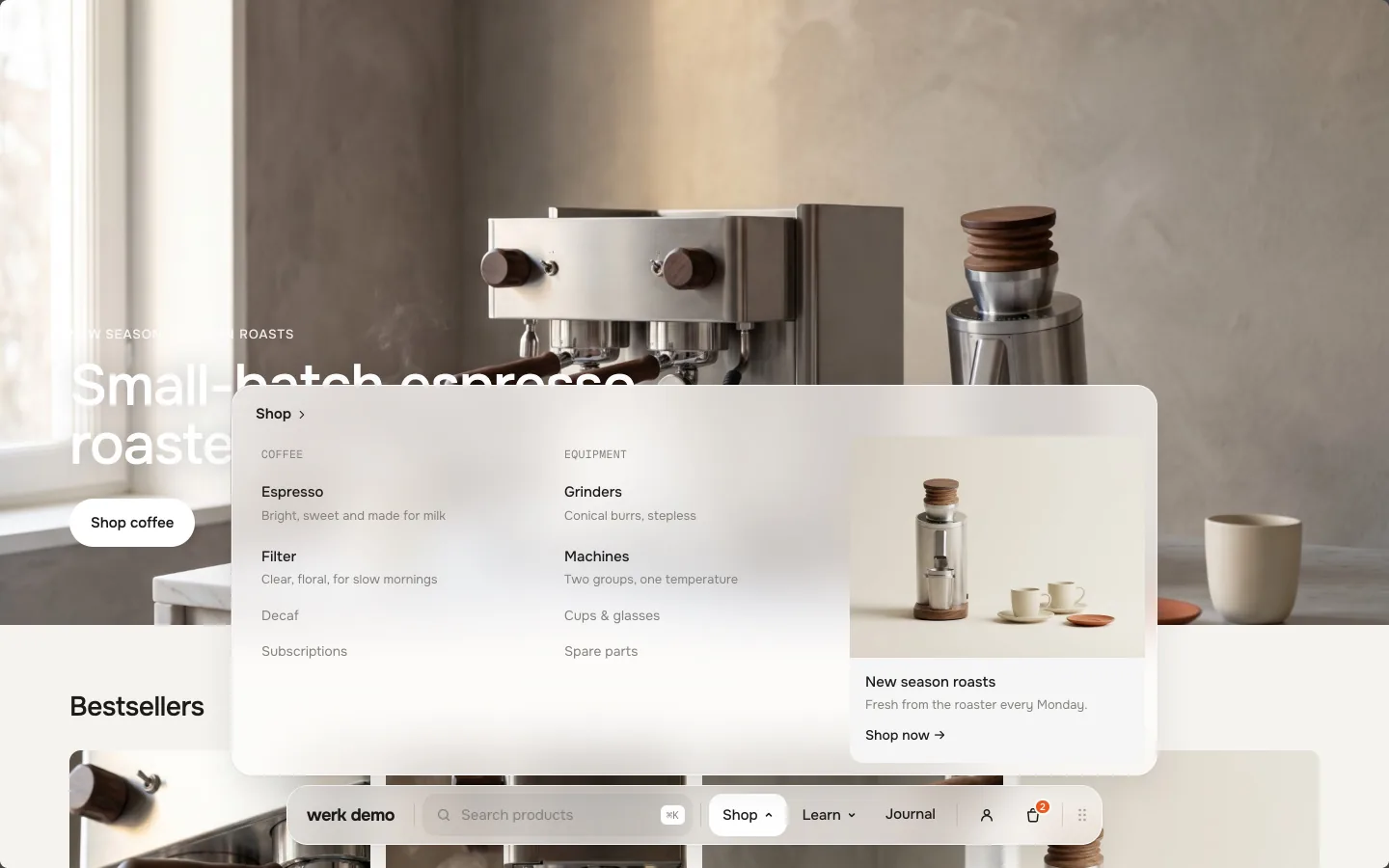
Big panels
Columns, big links with a short description, and small links. Moving to the next menu item changes the panel smoothly instead of closing and reopening it.
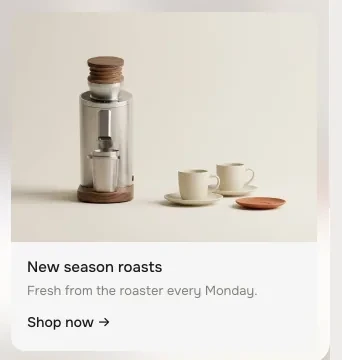
Promo cards
A picture with a short text and a link inside the panel – for example for a new collection.
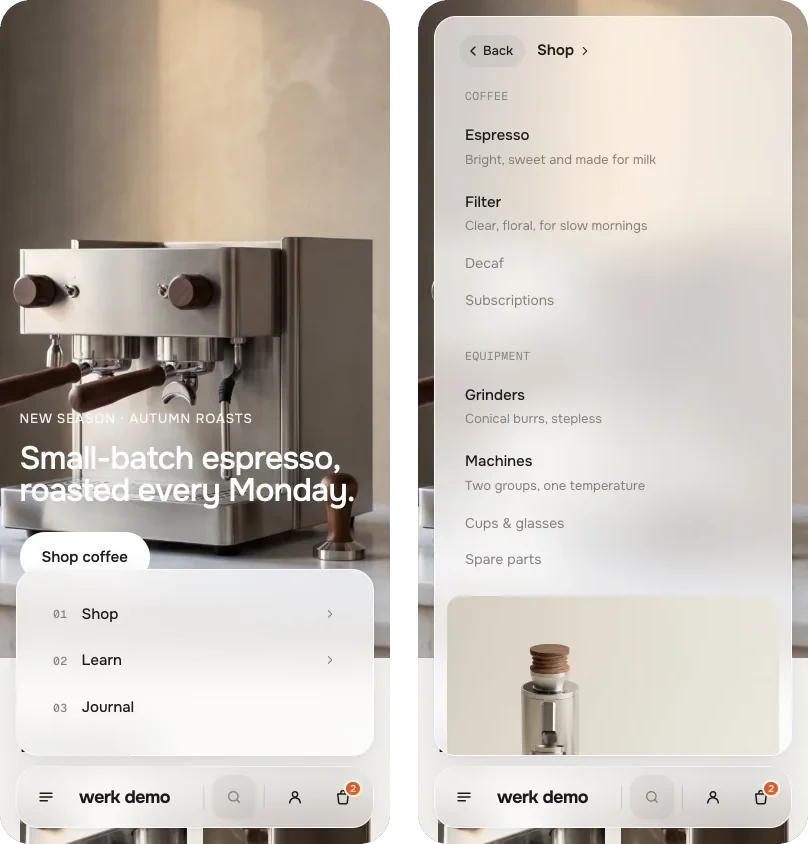
Menu on phones
Menu items open one level at a time, with a back arrow. It uses the same blocks – there is no second menu to build.
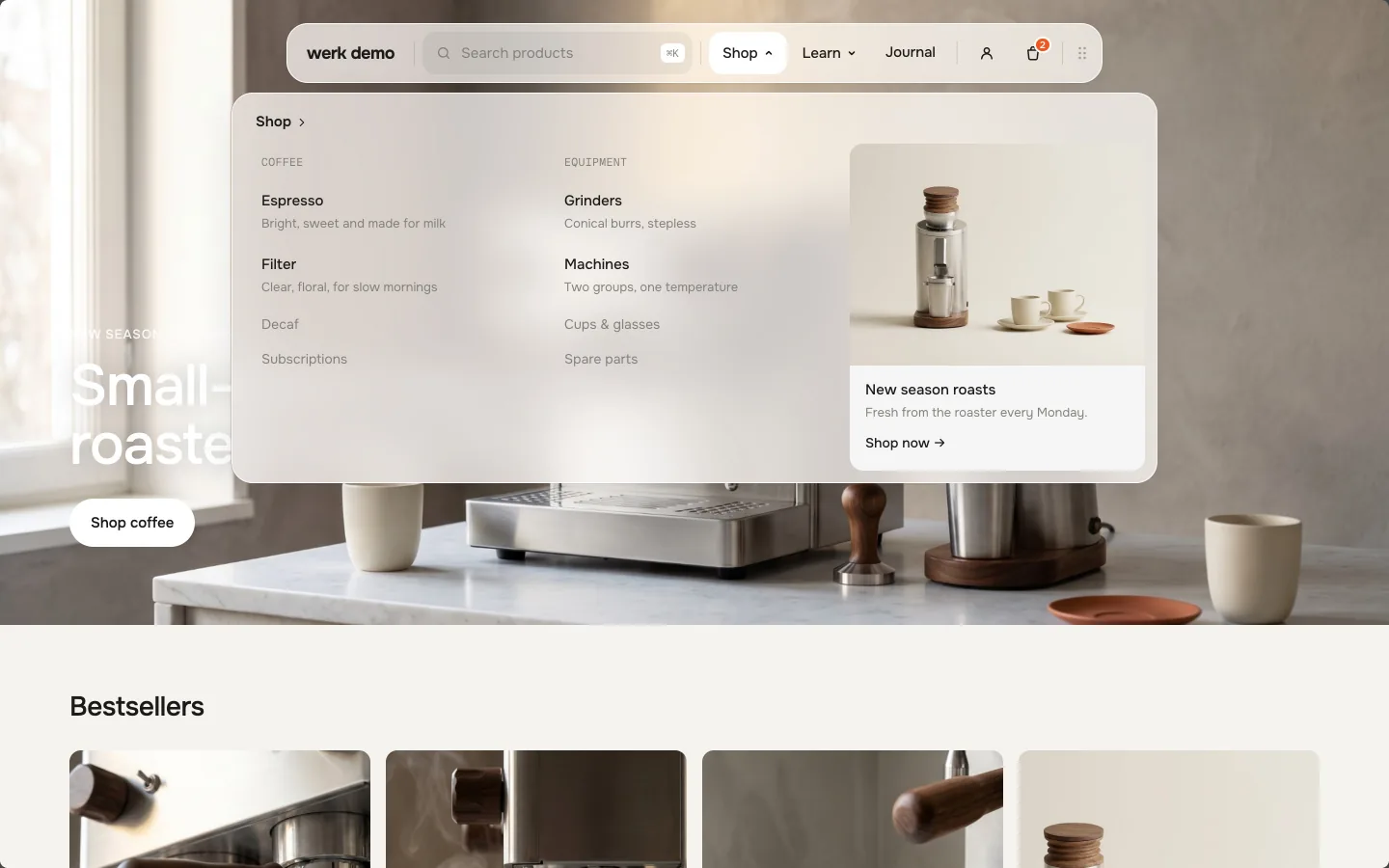
At the top or anywhere
Keep the bar at the top like a normal header, or let visitors move it to the edge they prefer.
Fully customisable
79 settings · 5 block types – colours, fonts, every text and more, each one explained in the docs.
Setup
From copy to live in two minutes.
- 01
Copy
Leave your first name and email, the code is in your clipboard.
- 02
Paste
New file in your theme’s sections folder, paste, save.
- 03
Add
Theme editor → Add section. Add it to the header and build the menu from blocks.
FAQ
Questions before you switch.
Is it really free?
Yes. During the launch every werk section is free – you only leave a first name and an email to copy the code. No account, no checkout.
Does it replace my theme’s header?
Yes. It goes into the header group and brings logo, menu, search, account, country and cart. Hide your theme’s own header section.
Do I build the menu twice for phones?
No. On phones and at the sides of the screen, the same blocks become a menu that opens one level at a time.
Can I use my existing Shopify menu?
Not in the Mega Nav – you build its panels from blocks in the theme editor, there is no menu to pick. If you want to use a menu from Online Store → Navigation, take Magnetic Nav: the same floating bar, with your Shopify menu and its dropdowns.
Does search work out of the box?
Yes. It uses Shopify’s predictive search, opens with ⌘K and shows products as you type.
Does the cart count update?
Yes. It follows the cart live and opens your theme’s cart drawer in Horizon and Dawn.
More apps you can drop