Shoppable images for Shopify
Looking for a shoppable image or lookbook app?
Shoppable images for Shopify, without the app.
Put dots on your picture, and each one opens the product inside it – with price and add to cart. Four sections, four ways to open a hotspot, each one section in your theme.
- No app
- No monthly fee
- One section, ~2 min
Why a section
Same result for your shoppers. No app behind it.
Four ways to show a product
Lookbook apps usually come with one layout. werk has four sections – side panel, see-through card, numbered list and full-screen view – each with two looks.
The picture follows the click
Depending on the style, the picture zooms in on the clicked spot, magnifies it or opens it up full size. And in all four, a picture that gets cropped on smaller screens shifts so no hotspot falls off the edge.
Products, not just links
A product hotspot shows its image, price and a working add to cart, and your theme’s cart count updates right away.
Side by side
What you get – and what you don’t.
General comparison with shoppable image and lookbook apps on the Shopify App Store, as of October 2026. Features differ from app to app – check the one you use.
What you get
One picture, four ways to shop it.
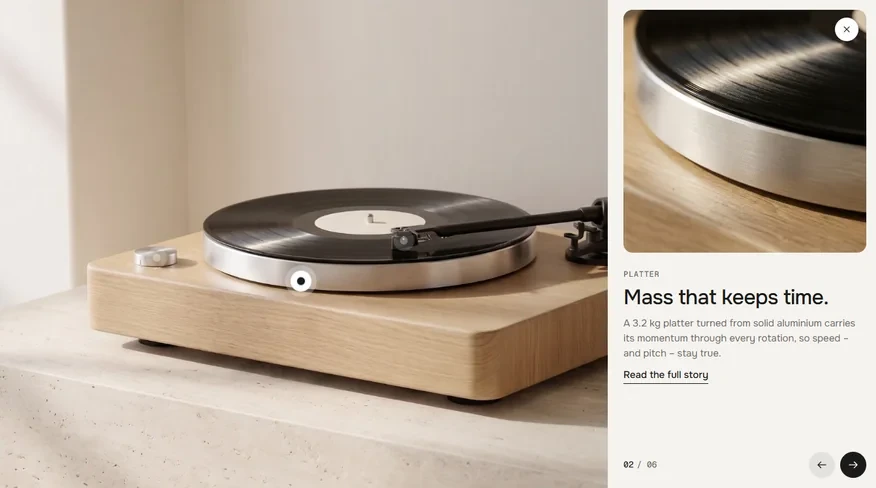
Panel
A panel slides in next to the picture, and the picture zooms in on the detail.
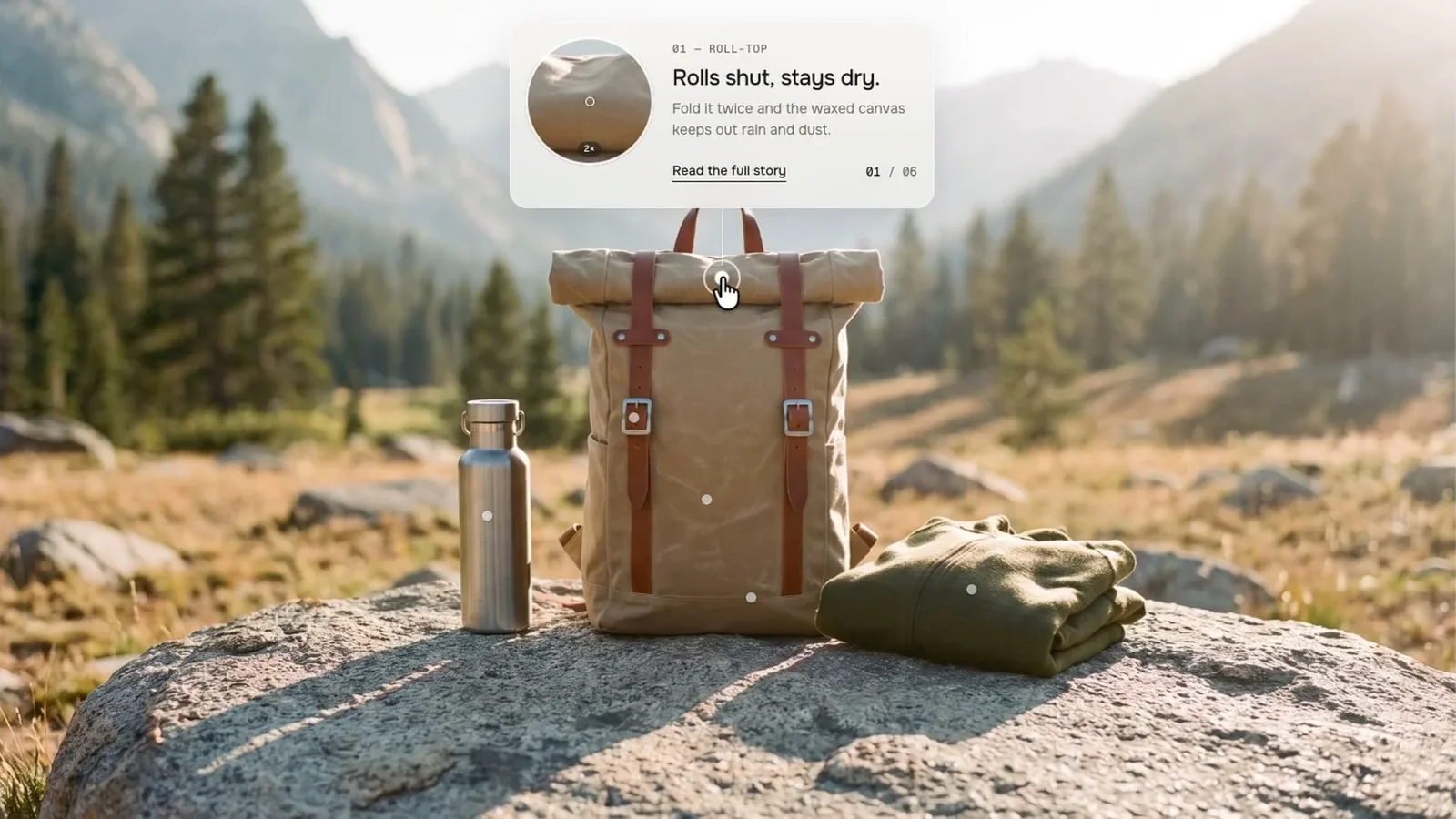
Popover
A see-through card opens right at the hotspot – or a round magnifier shows the spot up close.
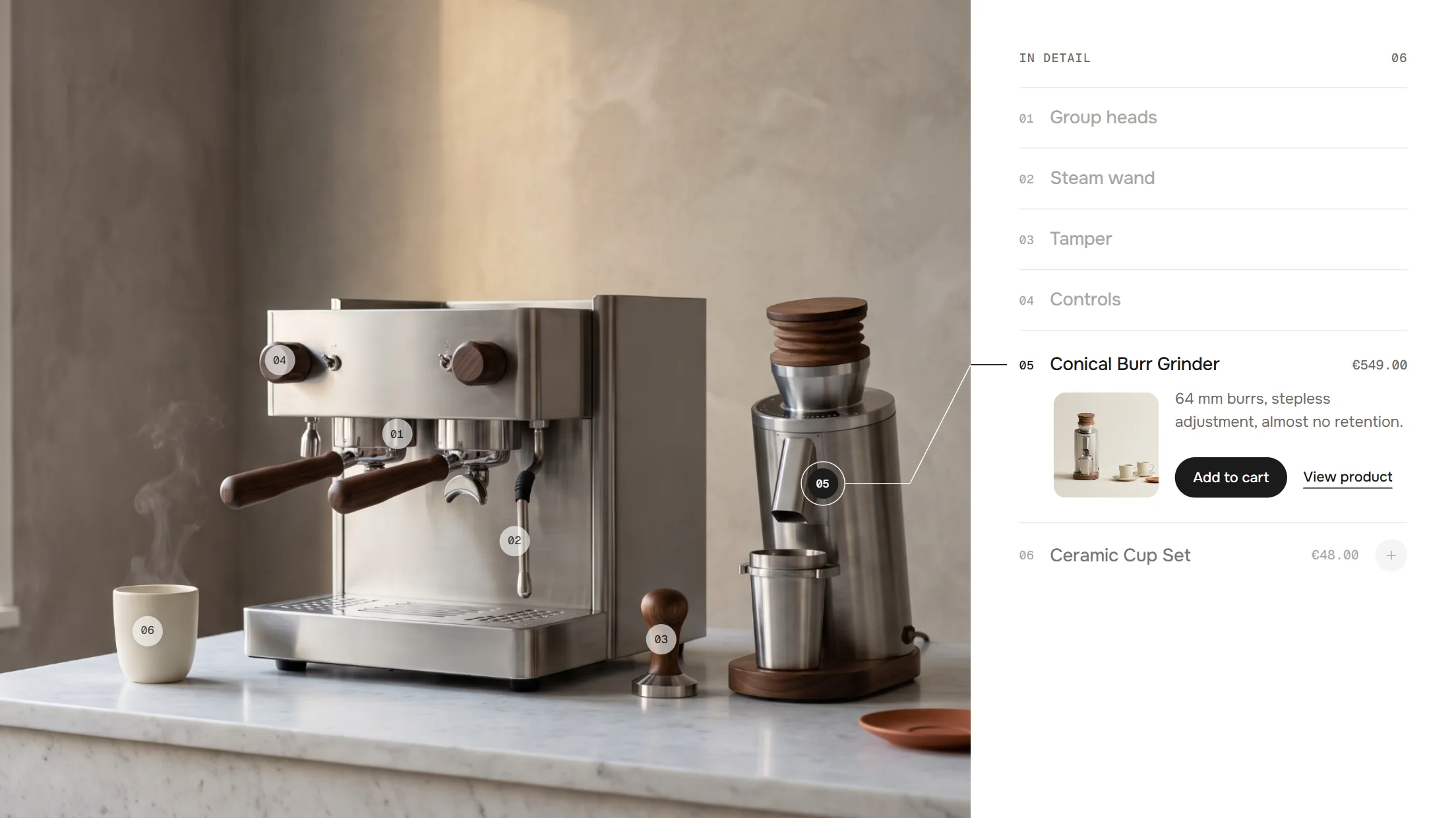
Index
A numbered list of everything in the picture sits beside it. Products go into the cart straight from the list.
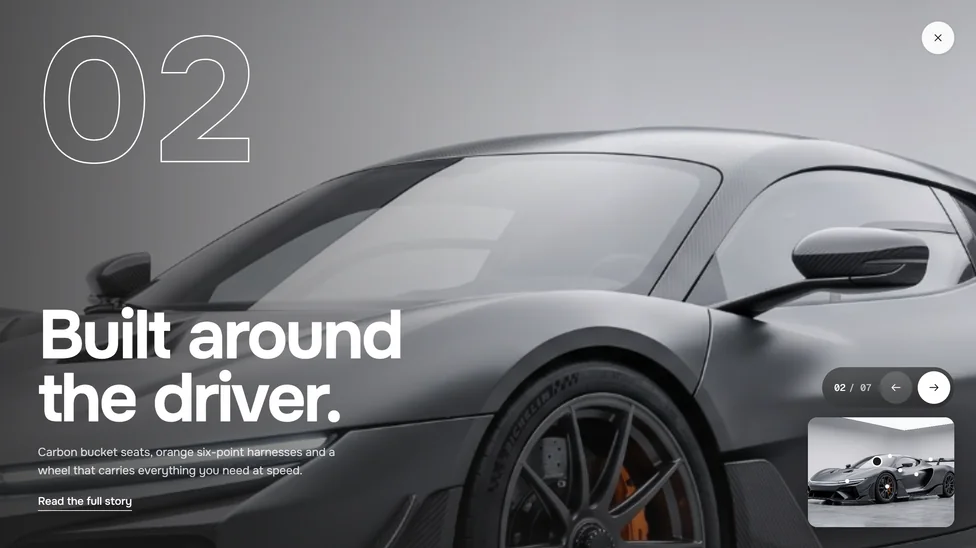
Portal
A circle opens from the hotspot and fills the whole section with a large detail picture and big type.
Fully customisable
66–70 settings per section – colours, fonts, every text and more, each one explained in the docs.
Setup
From copy to live in two minutes.
- 01
Copy
Leave your first name and email, the code is in your clipboard.
- 02
Paste
New file in your theme’s sections folder, paste, save.
- 03
Add
Theme editor → Add section. Pick your picture and place a block per hotspot.
FAQ
Questions before you switch.
Is it really free?
Yes. During the launch every werk section is free – you only leave a first name and an email to copy the code. No account, no checkout.
Which of the four should I take?
Panel for a calm product story, Popover to keep the picture whole, Index when the list matters as much as the picture, Portal for a big campaign moment.
How do I place a hotspot?
Each hotspot is a block with two sliders: one moves it left and right, the other up and down. In the theme editor you see it move as you slide.
What happens when the picture is cropped?
The picture slides so every hotspot stays inside the frame – on wide screens and on phones.
Can a hotspot show something that isn’t a product?
Yes. Instead of a product, a hotspot can show a picture, a headline, a short text and a link.
How many hotspots can one picture have?
Up to eight per section. For more, split the scene into two pictures.
More apps you can drop